Users with System, Global, and IQ Admin roles automatically have access to Vantaca IQ. This article explains Vantaca IQ security, how you can grant different role securities and permissions to your IQ users, and how to use the Permissions and Refresh Log tabs.
Note: If you have permission issues and/or no longer have access to a dashboard or Insights center, contact your Vantaca IQ Admin to ensure your permissions are configured correctly.
Contents
Security Settings
Everyone requires view access to the Vantaca IQ role security as well as to each individual dashboard or Insight center to see them in Vantaca IQ and to use the Performance tools. The Revenue Trends tool also requires specific permissions.
Note: If you enable dashboard permissions without the Vantaca IQ permission, users will not be able to access Vantaca IQ.
Grant Vantaca IQ Access
To give Vantaca IQ access to roles:
-
From within Vantaca, navigate to Settings > Roles.
-
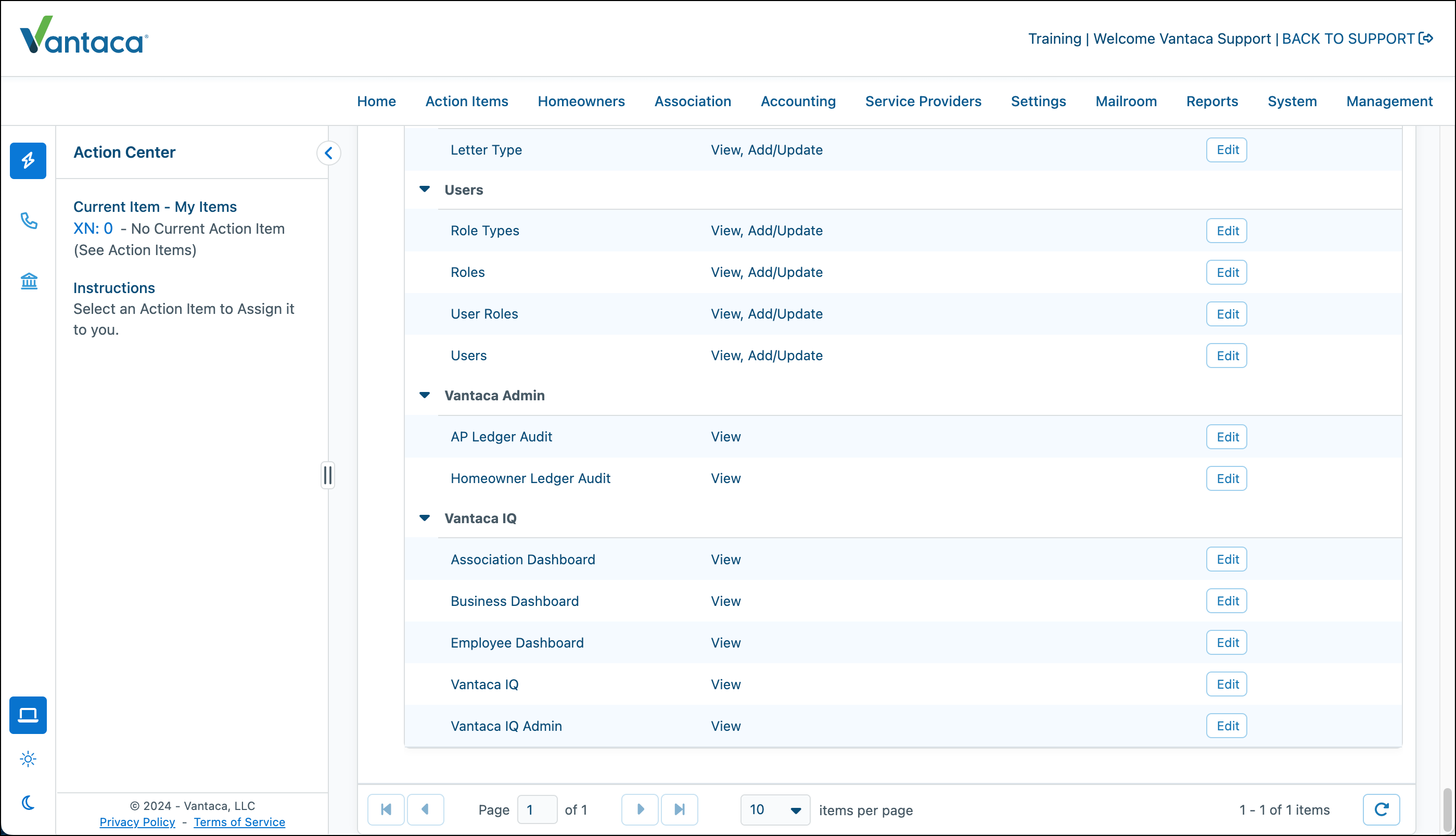
Search for the role to which you want to grant IQ access, click the caret next to it, and go to the Vantaca IQ section.
-
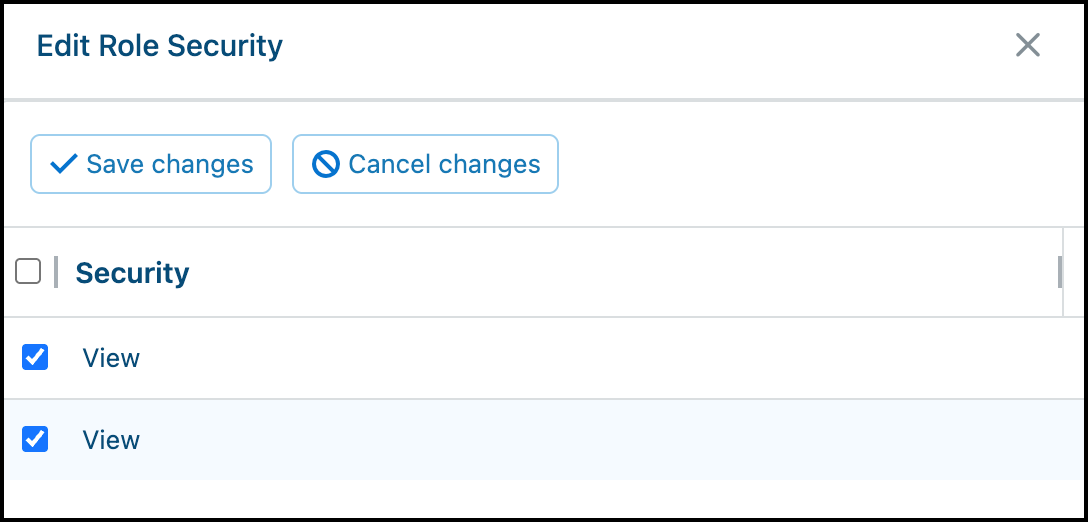
Click Edit next to the Vantaca IQ role security, select View in the Edit Role Security screen, and then click Save changes.
Important: You must have this permission to access Vantaca IQ.
-
Do the same for each of the following role securities that you want to add to the role:
-
Association Dashboard: Allows users to access the Association dashboard, view association information (based on their portfolio configuration within Vantaca in Settings > Portfolios), and add Association Performance tools to their dashboards.
-
Business Dashboard: Allows users to access the Business dashboard and add Business Performance tools to their dashboards.
Note: Association and employee hyperlinks are disabled if the user does not have access to the specific employee or association.
-
Employee Dashboard: Allows users to access the Employee dashboard and to add Employee Performance tools to their dashboards. If the user is not an IQ Admin, they will only see their own Employee Listing information unless their Admin configured individual access to other employees. For more information, see the Configure Employee Access section.
-
Benchmarks Command Center: Allows users to see the Insights Benchmarks page which provides comparative analytics to help you understand your management company performance relative to industry peers within the Vantaca network.
- Collections Command Center: Allows users to see the Insights Collections page which includes several key components that work together to provide a complete view of your collections performance.
-
Company Command Center: Allows users to see the Insights Company page which shows comprehensive metrics about your company's performance
across portfolio management, revenue generation, and employee productivity.
-
Vantaca IQ Admin: Gives default access to all dashboards, the Association Bank Balances tool, and the Permissions tab on the Settings page in Vantaca IQ.
-
Revenue Trends: Enable the following permissions on the selected role to view this tool on the Business dashboard.
-
Ensure that both the Vantaca IQ and Business Dashboard View permissions are enabled.
-
Revenue Manager: Gives access to the Revenue Manager feature so users can see the data within the Revenue Trends tool. Go to the Management section and click Edit next to Revenue Manager. Select at least one security option.
Vantaca IQ Admins
Users with IQ Admin access have enhanced permissions when viewing any Insights page:
-
Filter Options: All portfolios, portfolio types, and responsibilities appear in filter dropdowns regardless of role assignments
-
Data Access: All company data is accessible without portfolio or responsibility restrictions
-
Scope: These enhanced permissions apply to all Insights pages within Vantaca IQ, including Performance Rankings
This allows IQ Administrators to perform company-wide analysis and create comprehensive reports across all associations and portfolios.
Vantaca IQ Settings and Permissions Pages
You can click the Settings navigation option to access the Permissions page within Vantaca IQ.
Permissions Tab
If you are an IQ Admin, you will see the Permissions tab, where you can view the Employee Permission Listing.
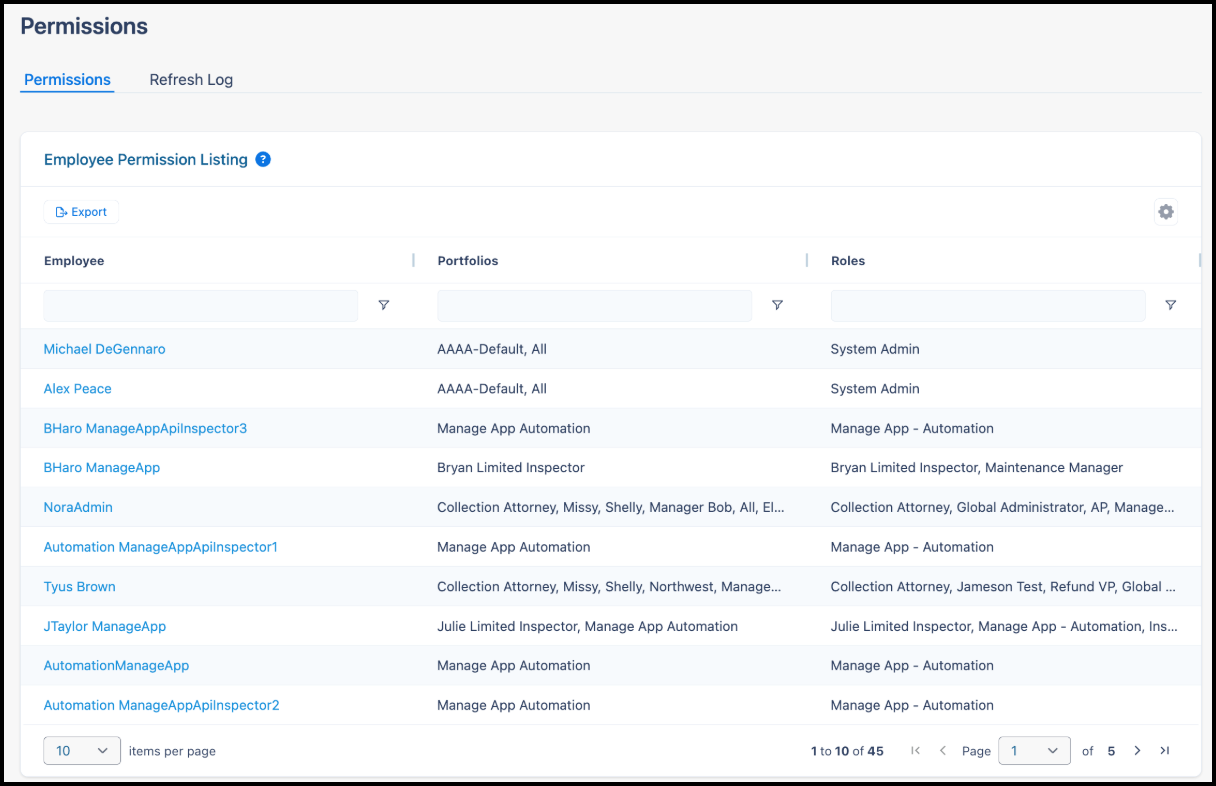
This page lists:
-
Employee: The employees in your organization who use Vantaca.
-
Portfolios: All of the portfolios to which the user can access. For more information about portfolios, see the "Understanding Roles, Portfolios, & Responsibilities" article.
-
Roles: All of the roles granted to them.
Vantaca IQ Admins can click an Employee name to view if they are allowed to view IQ metrics for themselves only, all employees, or selected employees. They can also change these permissions (make sure to click Save Settings when done). For more information about employee access, see the next section.
Configure Employee Access to Employee Information
If you're setting up a new user, you can configure their securities the day after they've been set up in Vantaca, as data is pulled into IQ on a nightly basis (this applies to associations too). If you change a user's association access in their portfolio, the information pulls over during the nightly process. Changes to security settings within IQ take place immediately.
Tip: To easily configure access for an employee that's been assigned many users, set them to Self-Only first and then add the employees they need from there. This saves you from having to manually unassign the unwanted users.
To configure employee access to employee informaton:
-
In Vantaca IQ, navigate to Settings > Permissions.
-
Click an Employee name in the Employee Permission Listing.
-
Select one of the available permission options:
-
Self Only: Employees can only access their own data.
-
All Employees: Employees can access all other employee information.
-
Selected Employees: Manually configure which employees this specific employee can access. This is useful if you have multiple managers in different departments, each with their own group of unique employees, but they don't need access to all employee information.
-
If you chose Self Only or All Employees, click Save Changes to complete.
OR
If you chose Selected Employees, the Restricted and Permitted Employees sections display. Go to the next step.
-
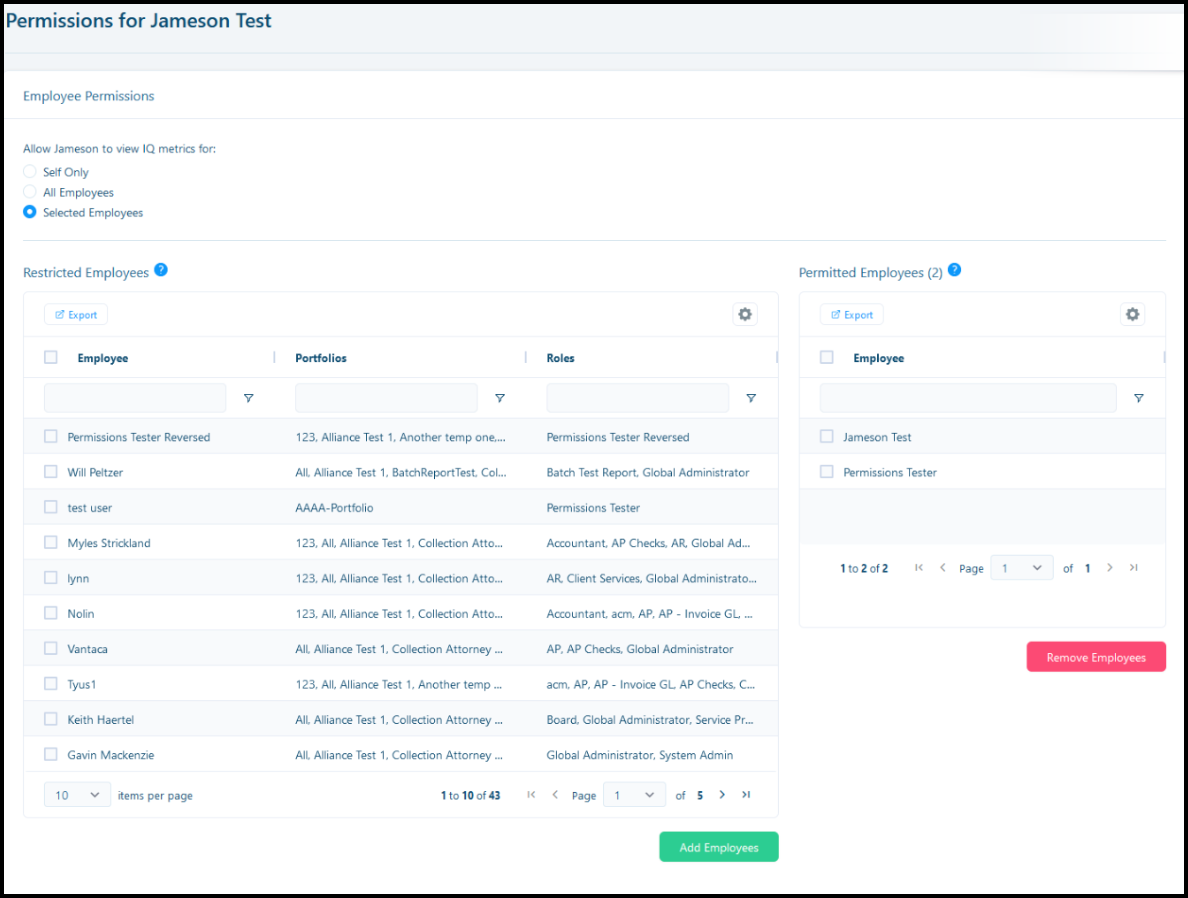
In the Restricted Employees section, select one or more employees that you want the current user to have access to, and then click Add Employee.
The employee name moves to the Permitted section.
Note: The user that you're currently configuring for displays in the page header. Changes automatically apply when you click Add Employees.
-
To remove access, select one or more employees from the Permitted section, and then click Remove Employee.
-
Click Save Changes to complete.
Refresh Log Tab
Click the Refresh Log tab to view information about data refresh processes and timing.
Tools with the live data icon are updated in real-time, while tools with the scheduled data refresh icon are updated on a schedule. The Refresh Log shows you the date and time of the scheduled refreshes:
- Snapshot Time: When data capture occurred.
-
Data Available Time: When refreshed data became accessible in IQ.
Note: Weekly maintenance is performed on weekends; therefore, refreshes may not occur during this time.
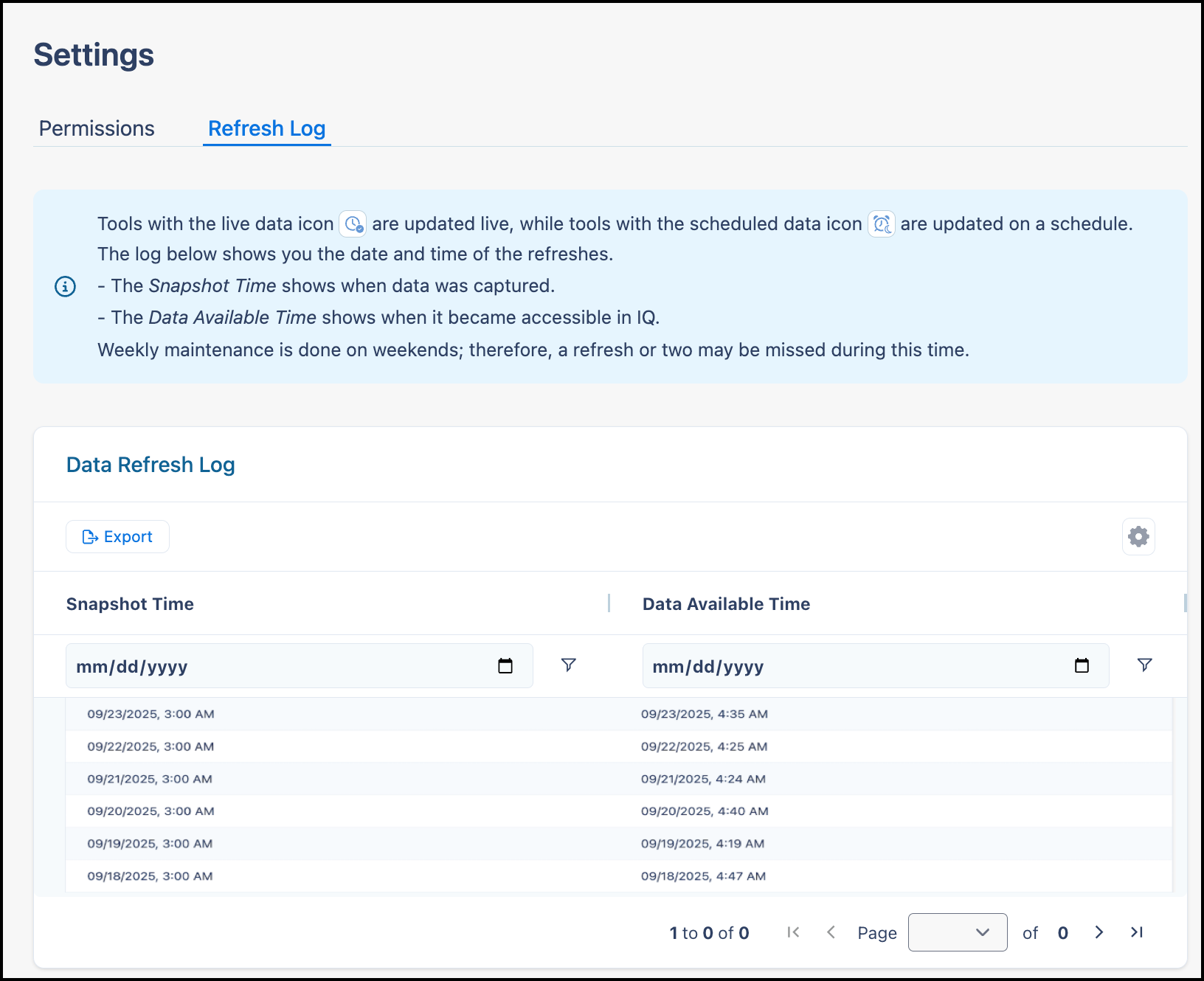
This page provides transparency into data freshness and helps you understand when information was last updated.
Click Export to download the Data Refresh log information in an Excel spreadsheet.
Note: Vantaca IQ now automatically refreshes data to keep information current without compromising system performance. As a result, the manual refresh option is no longer available within Vantaca IQ.

Comments
0 comments
Please sign in to leave a comment.