The Employees dashboard shows a list of the employees that use Vantaca in your organization, the portfolios and roles assigned to them, and the number of associations and properties that they manage.
Each tool on the Employees Dashboard includes icons indicating whether it uses live or scheduled data and whether it responds to the date range filter. For more information about these icons, see the "Vantaca IQ: Understanding Live and Scheduled Data" article.
Contents
Employee Listing
In Vantaca IQ, click the Employees menu option to view the Employees dashboard. The Employee Listing displays by default.
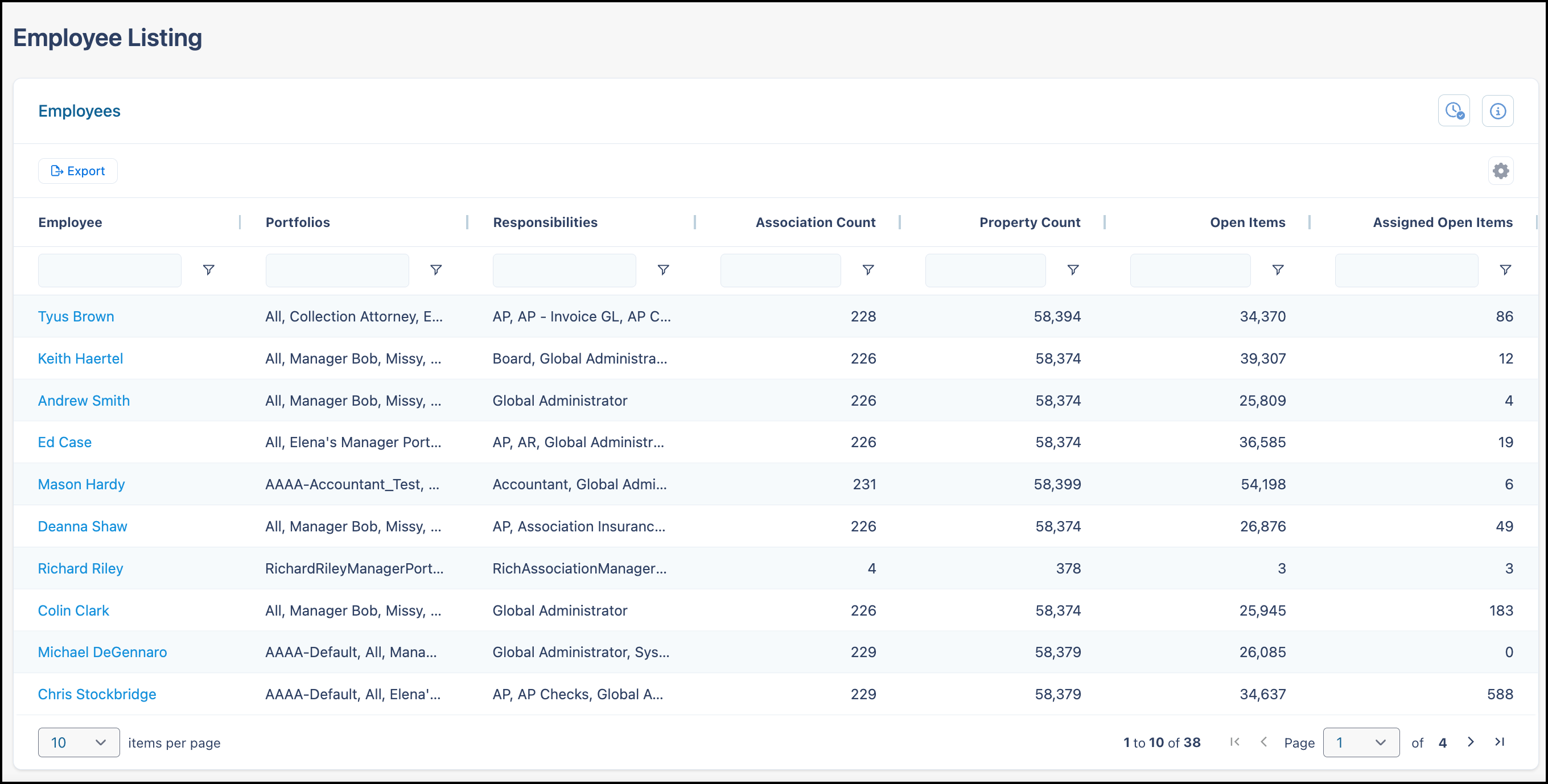
Note: The following counts are displayed on the Employee Listing:
-
Association Count and Property Count: Based on role/responsibility assignments.
-
Open Items: Displays the total number of open action items the employee can access, including directly assigned items and items in their portfolios where the current step matches their roles. This count matches the total shown in the Open Items tool on the employee's individual dashboard and updates in real-time as action items are created, completed, or reassigned.
-
Assigned Open Items: Displays action items directly assigned to the employee via the "Assigned To" field on the action item. This count shows only direct assignments and does not include items accessible through role-based responsibilities..
The Unread Messages count has been removed from the Employee Listing display.
Employee Details
Click any Employee name to see more details about each employee's activity. For example:
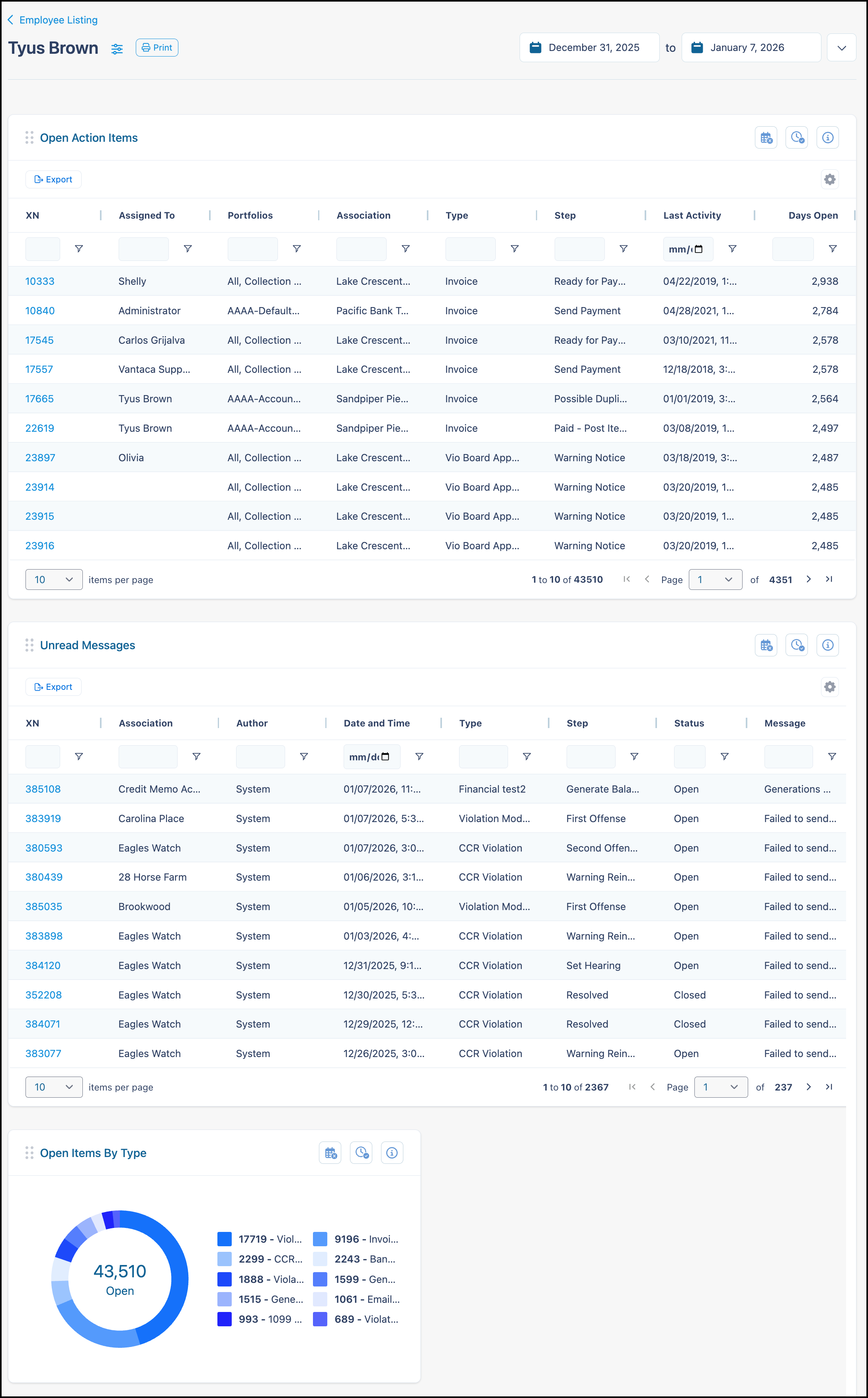
Click the Employee Listing link to return to the Employee Listing page.
The Individual Employee Dashboard contains the following performance tools:
-
Unread Messages: Total unread messages visible to the employee in their My Messages list. Does not include voided items.
-
Open Items By Type: Open action items assigned to the employee, broken down by Action Type. This includes items directly assigned to the employee and items where the current step is assigned to a role that matches the employee's roles.
-
Activity Trend: A breakdown of the employee's activity that they're completing on a daily basis. Select the desired Time Unit to display results according to Day, Weeks, or Months.
-
Open Action Items: Open action items assigned to the employee. This includes items directly assigned to the employee and items where the current step is assigned to a role that matches the employee's roles. The tool includes an Assigned To column (displayed by default to the right of the XN column) that shows who each action item is assigned to..
-
Action Item Activity: A log of activity performed by the employee on action items, including notes added and step changes. Each event where the employee takes action on an action item — such as adding a note or correspondence — generates a separate entry, even if the step did not change. If the same XN appears more than once, check the Step Changed column: a value of False indicates that the employee took action on the item without advancing the step. This is expected behavior, not a duplicate. Child action items automatically generated by email broadcasts are not counted individually here; only the original broadcast action and any manual follow-up on those items are included.
-
Coded Invoices: A list of invoices that the employee has coded within the selected date range. An invoice is considered coded when the data entry screen has been opened and the invoice has been stepped to a configured step beyond the data entry screen step. For coded invoices, the Step column indicates the step that triggered the data entry extra action (not the current step) and Last Activity is when the action item was last modified.
Employee Analytics
For more information about Employee Analytics, see the "Vantaca IQ - Analytics" article.
Troubleshooting
Q: Why can't I see an employee in Vantaca IQ?
A: An employee won't be visible if they:
- Have had no activity in Vantaca.net within the last 30 days, or
- Are a new employee who hasn't yet logged any activity
Once the employee records activity in Vantaca.net, they will appear in Vantaca IQ. Conversely, in the event that a deleted employee is still appearing within Vantaca IQ, please contact Vantaca Support for assistance.

Comments
0 comments
Please sign in to leave a comment.