The Employee and Association dashboards each contain an Analytics section that contains comparative performance tools for their respective dashboards.
Contents
To access these dashboards click the dashboard name (1) in the navigation menu, and then Analytics (2). See the following Employees dashboard example:
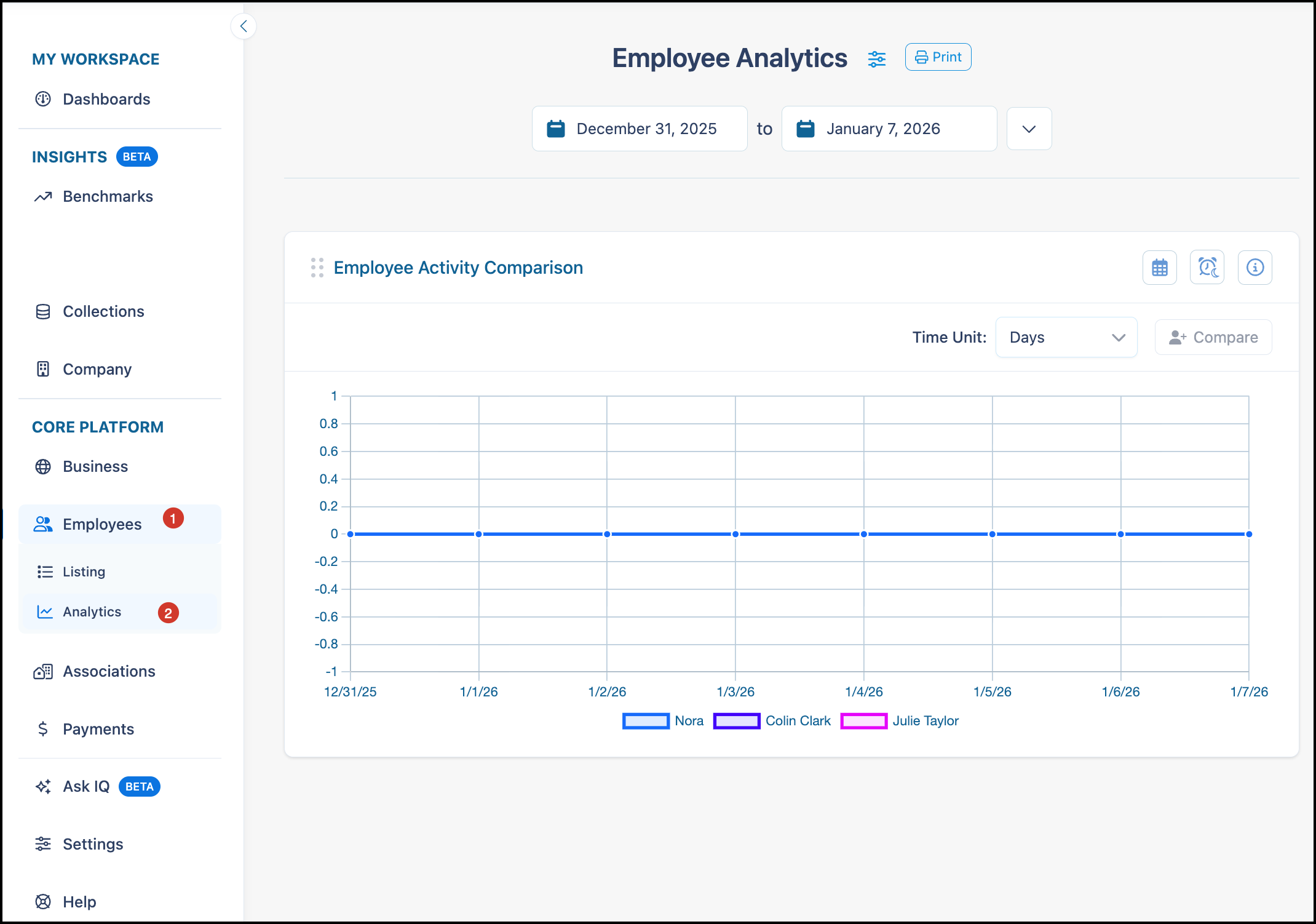
Employee Analytics
Employee Analytics contains the Employee Activity Comparison performance tool.
Employee Activity Comparison
Use the Employee Activity Comparison tool to compare action item activity, including step changes and messages, for the selected date range across multiple employees.
You must set up the tool by adding employees before any data displays.
Note: Only IQ Admins can access all employees (by default). For more information about granting non-admin users access to other employees, see the "Vantaca IQ - Securities and Permissions" article.
Select the desired Time Unit to display plot points as Days, Weeks, or Months.
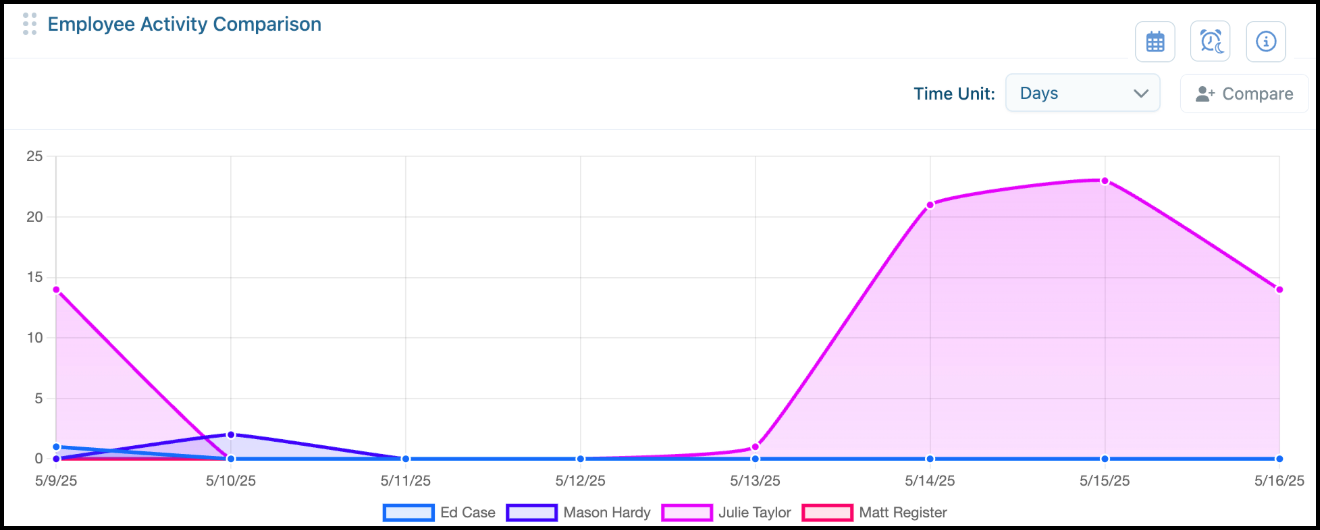
To set up the Employee Activity Comparison tool:
-
Click Compare.
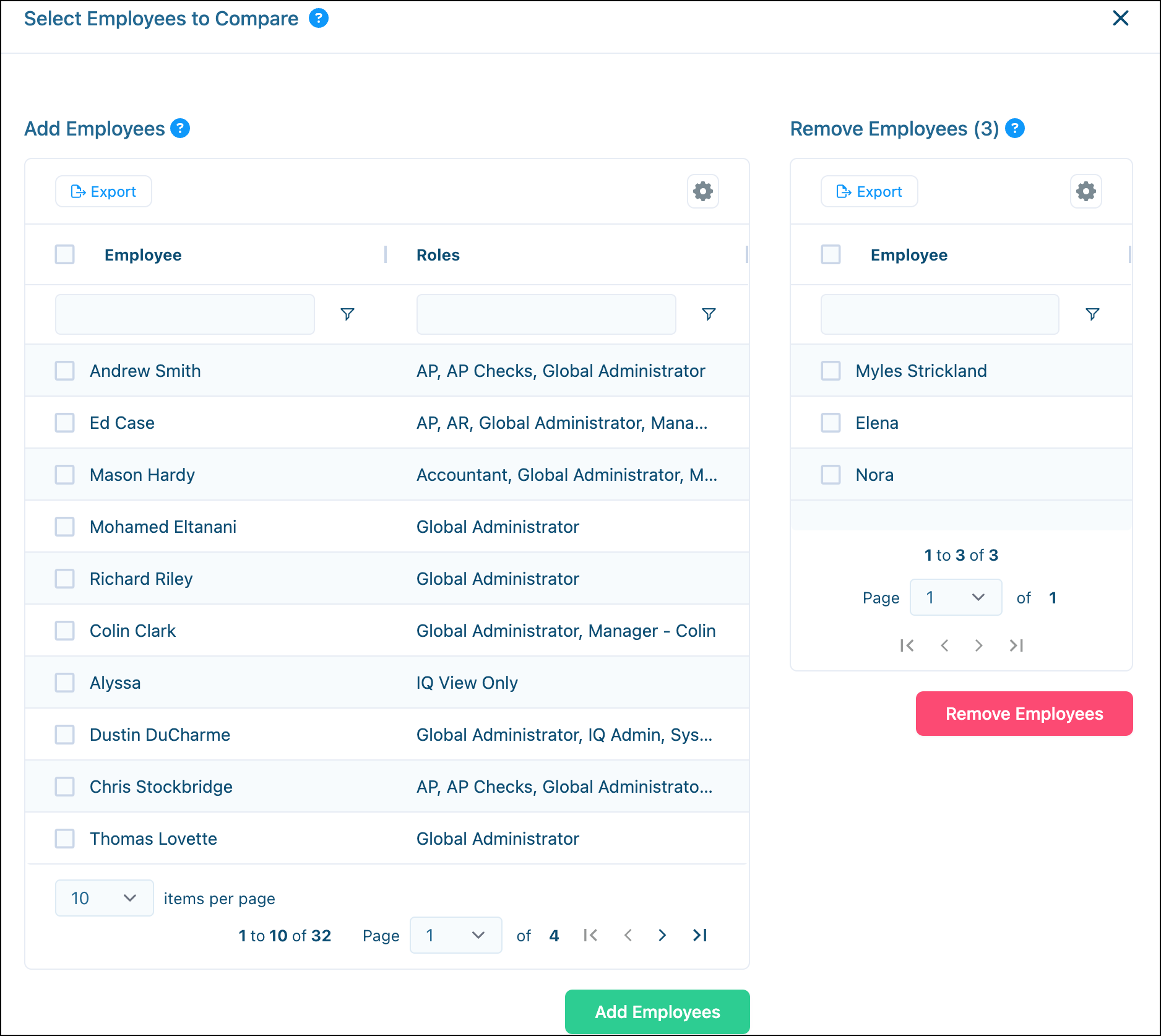
The Select Employees to Compare screen opens.
-
Select one or more employees as needed in the Add Employees section.
-
Click Add Employees to complete the setup.
OR
If you want to remove employees, select their name in the Remove Employees section, and then click Remove Employees.
-
Click away from the selection screen and the data displays in graph format.
Note: You can click any employee name at the bottom of the graph to toggle them from the comparison.
Association Analytics
Association Analytics contains the following configurable performance tools, which you must set up to view data:
Association Activity Comparison
Use the Association Activity Comparison tool to compare action item activity, including step changes and messages, for the selected date range across multiple associations. You can compare all action item activities or compare specific action types.
You must set up the tool by adding associations before any data displays.
Note: You will only have access to associations configured within your portfolio.
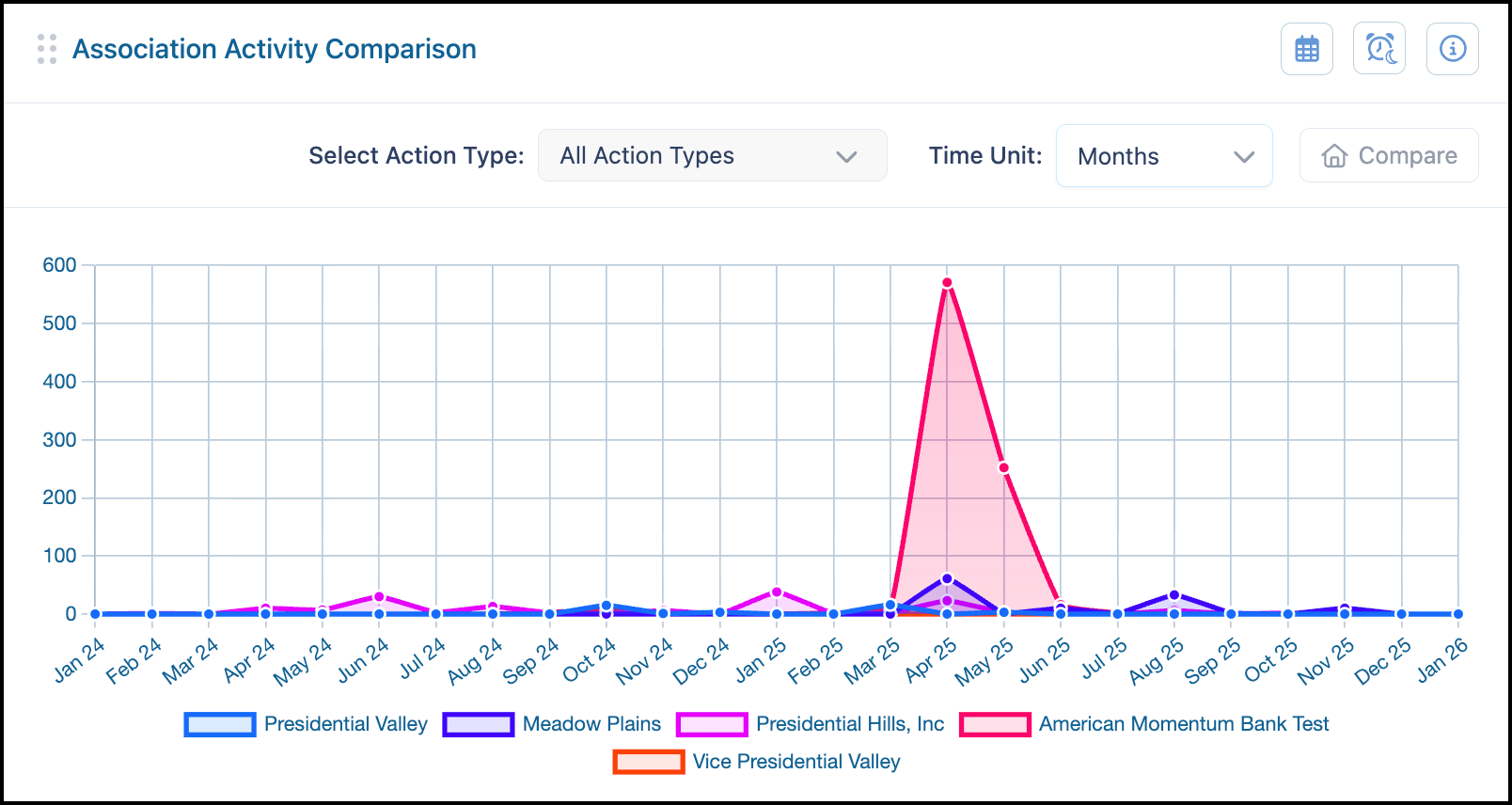
To set up the Association Activity Comparison tool:
-
Click Compare.
The Select Associations to Compare screen opens.
-
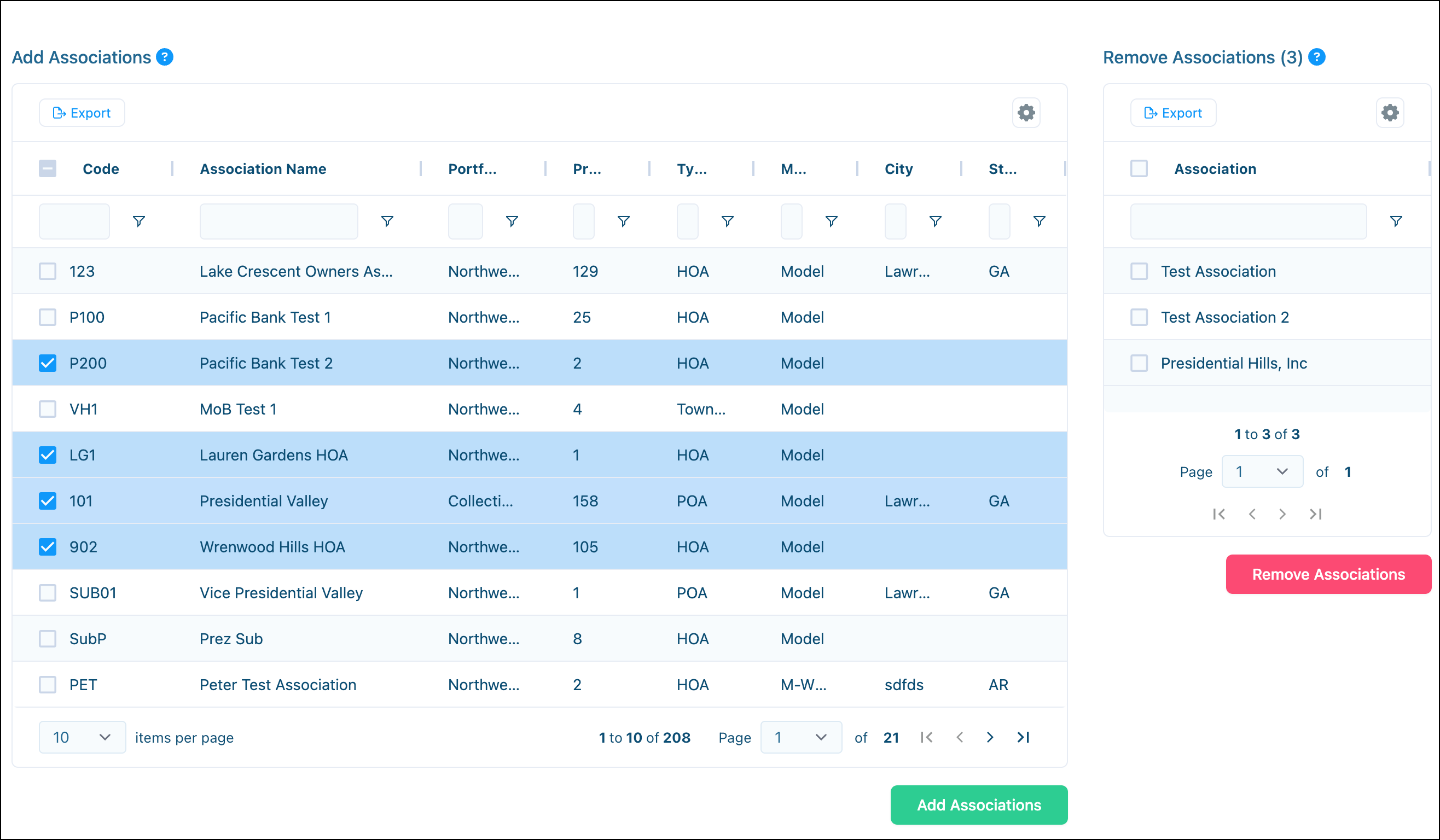
In the Add Associations section, sort and filter as needed to select as many associations as desired using the checkbox next to the Association Code.
-
Click Add Associations to complete the setup.
OR
To remove associations, select their name in the Remove Employees section, and then click Remove Employees.
-
Click away from the selection screen and the data displays in graph format.
Note: You can click any association name at the bottom of the graph to toggle them from the comparison.
Back to Top
Action Item Lifecycle
Use the Action Item Lifecycle tool to review the average time action items spend in each step, and the open items associated with each step within the chosen action type. The average time does not include action items currently in each step, closing steps, or auto-stepped items. Open items do not depend on the date range.
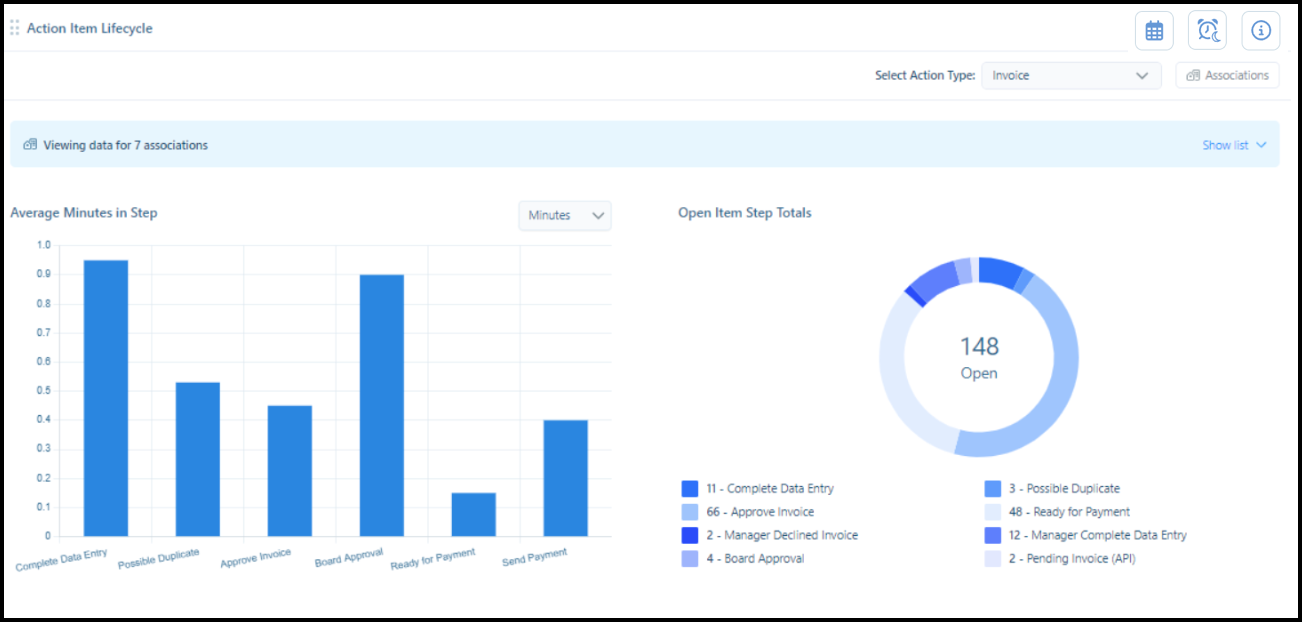
To set up the Action Item Lifecycle tool:
-
Select an Action Type from the dropdown.
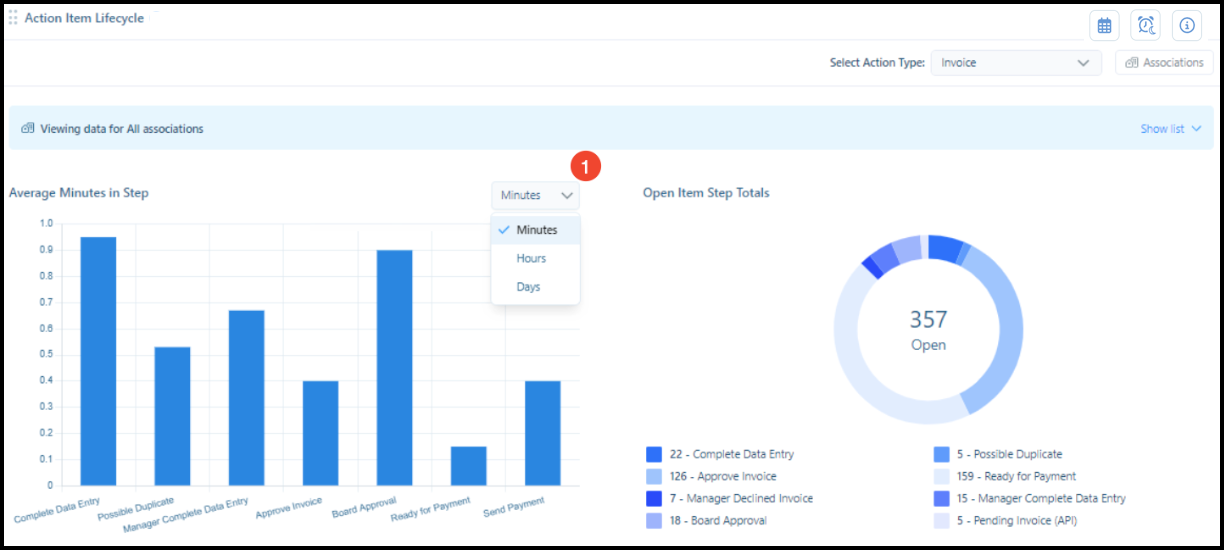
The tool displays the data for that action type for all Associations.
-
Select the unit of measure (1) most suitable for the data set you want to review.
-
Click Associations in the top-right of the tool to narrow the selection.
The Select Associations to Include screen displays.
-
In the Add Associations section, sort and filter as needed to select as many associations as you want, or select the Select All checkbox to quickly select all associations.
-
Click Add Associations to complete the setup.
OR
To remove associations, select their name in the Remove Employees section, and then click Remove Employees.
-
Click away from the selection screen and the data displays in graph format.
Note: You can click any association name at the bottom of the graph to toggle them from the comparison.
-
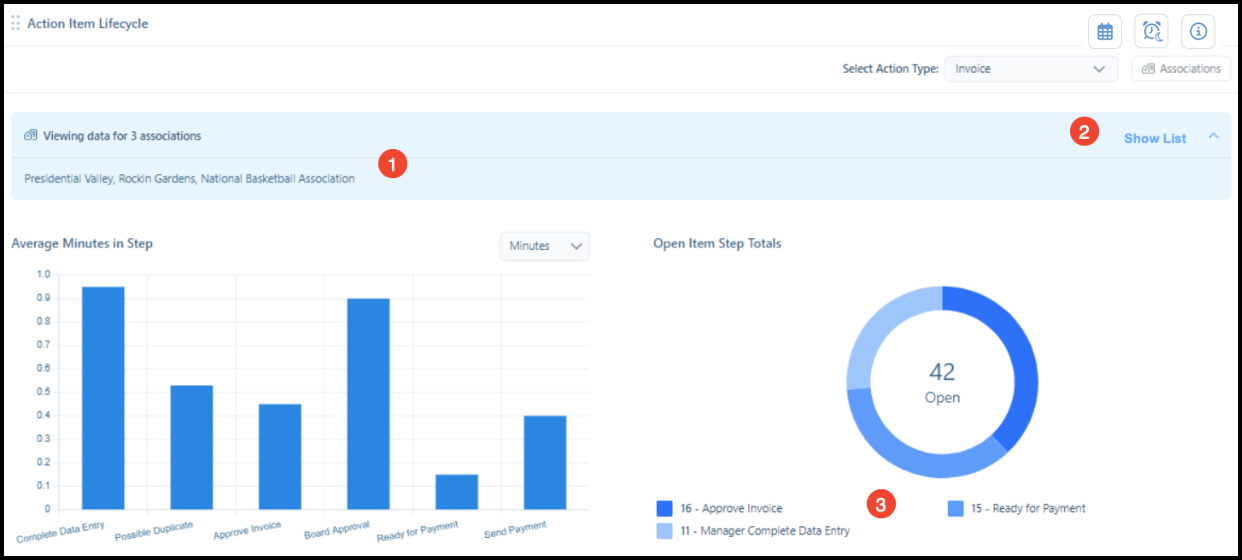
The Data Bar (1) reflects the associations that you selected, select Show List (2) to reveal a list of selected associations, and click each Legend Step (3) under the donut chart to open a list of all open items for the selected step.
Action Item Aging
Use the Action Item Aging tool to track the age of action items in your associations. This tool displays how long action items have been open (broken down by time categories) and allows you to drill-down to view details like type, step, and role. You can filter by action type and/or age to focus on a specific type or see when items were created or last updated.
You can use this tool to identify problem areas:
Note: Different action types have different expected resolution timeframes. For example, collections-related items may naturally take longer to resolve than routine maintenance requests.
- High numbers in longer time categories (30+ days) may indicate workflow bottlenecks.
- Associations with consistently high counts across multiple time categories may need attention.
- Specific action types that consistently age out may indicate process issues.
Make sure to regularly monitor the tool to identify trends and compare similar associations to identify best practices.
The data in this tool is not impacted by the global date range.
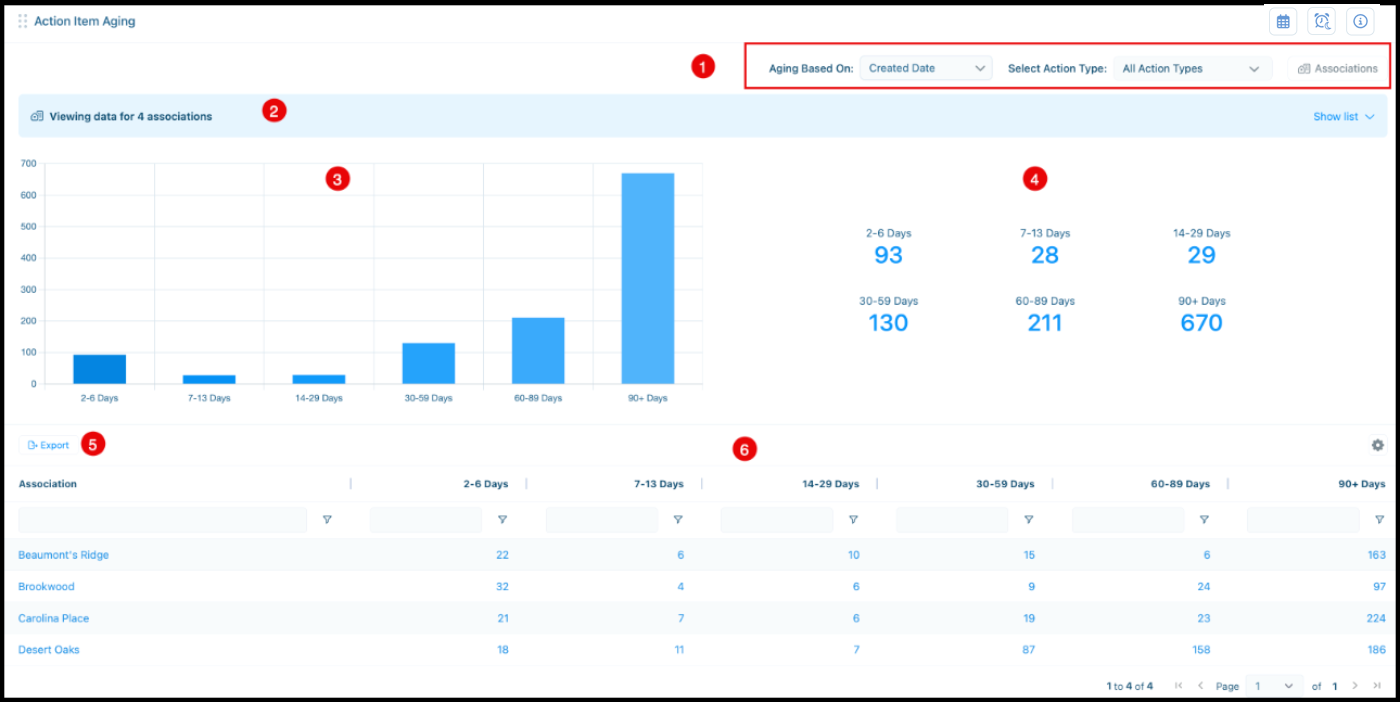
The tool includes the following sections:
-
Criteria Selection (1): Use these selection options to choose your data criteria, see the following procedure on setting up the tool.
-
Association Info Bar (2): Shows how many associations that you are viewing. Click Show list to see the specific associations (only displays when you have selected specific associations, not all associations).
-
Summary Bar Chart (3): Visual representation of action item counts by age categories. Hover over a bar to see the exact count.
-
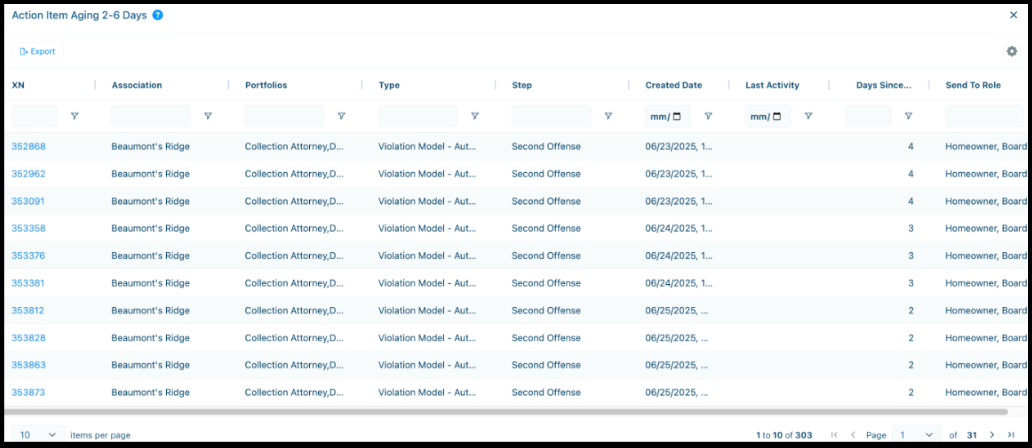
Summary Statistics (4): Numerical breakdown of action items by time periods. Click the number to open the category and display all related action items. The following image is an example of the display after clicking the number 93 under the 2-6 days category.
Note: Click an action item number to open it within Vantaca CMP in a new tab.
-
Export (5): Click to download the association detail table data as an Excel file. The export includes all currently filtered data and respects your selected associations and action type filters.
-
Association Detail Table (6): Individual association data with clickable cells for drill-down. Use this table to:
-
- Identify which associations have the most aged action items.
- Compare aging patterns across different associations.
-
Click the Association name to open that association's individual dashboard.
-
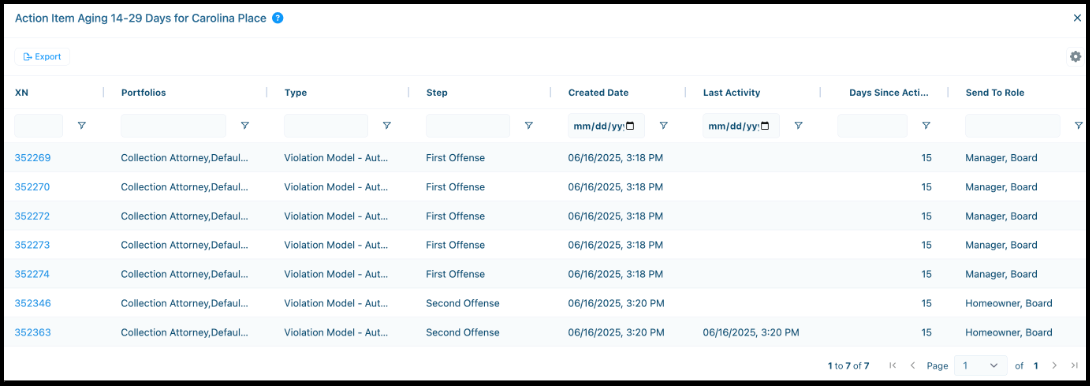
Click any of the numbers in the time category columns to open the category and display all related action items for that association. For example, the following image shows after clicking the number 7 in the 14 -29 days column of the Carolina Place association.
To set up the Action Item Aging tool:
Note: When added to a custom dashboard, this tool maintains separate settings from the main Analytics page, allowing you to create multiple views with different filters and configurations.
-
Select an option from the Aging Based On dropdown:
-
Created Date (default): Measures time since the action item was originally created.
-
Last Activity Date: Measures time since the last activity occurred on the action item.
-
Select an option from the Select an Action Type dropdown:
Note: Action types are specific to each management company and vary based on your configured action types. The selected action type persists between sessions.
-
All Action Types (default): Shows data for all action item types.
-
Specific Action Type: Select from a dropdown list of action types available in your management company.
-
Click Associations in the top-right of the tool if you want to narrow the selection from all associations.
The Select Associations to Include screen displays.
-
In the Add Associations section, sort and filter as needed to select as many associations as you want.
-
Click Add Associations to complete the setup.
OR
To remove associations, in the Remove Associations section, select the association and click Remove Associations.
-
Click away from the selection screen and the filtered data displays in the tool.
Back to Top

Comments
0 comments
Please sign in to leave a comment.