Subledgers allow for money to be categorized separately on homeowner ledgers, which will show in separate ledgers on the owner's account as well as their statements.
Contents
Create a Subledger
To create a subledger:
- Navigate to System > Subledgers.
The Subledgers screen opens.
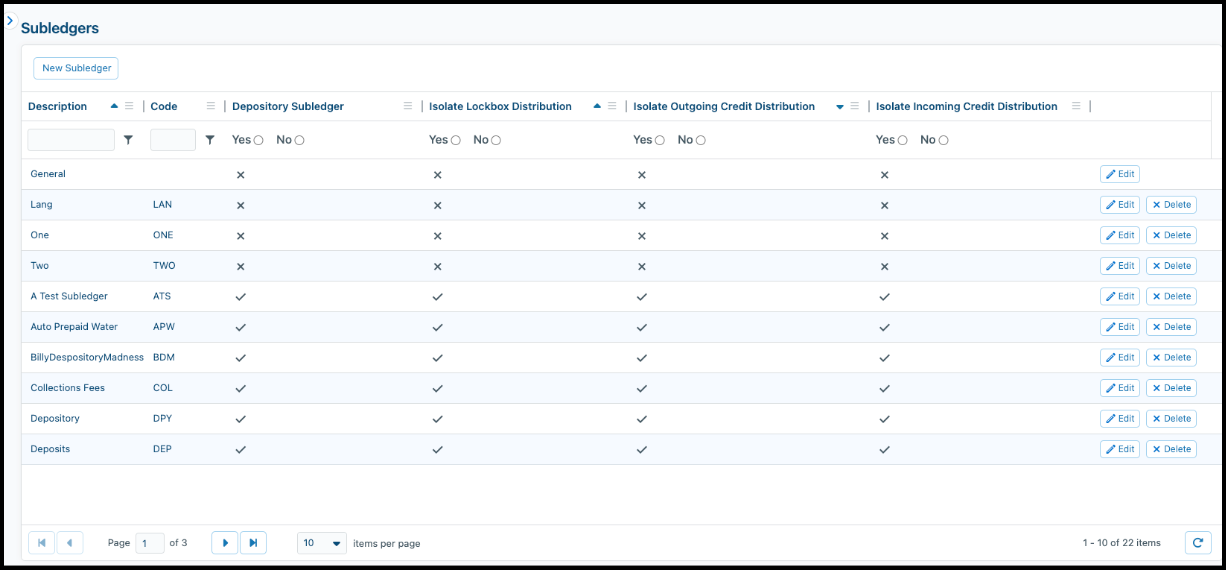
- Click New Subledger.
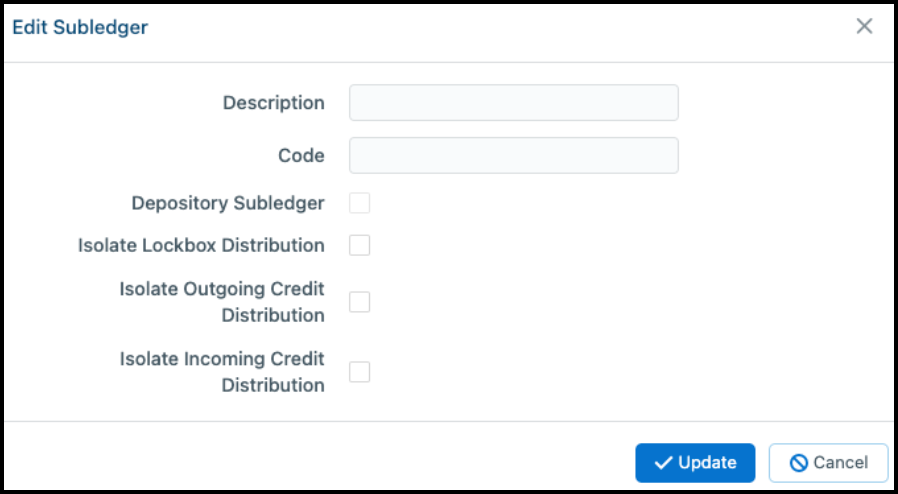
The Edit Subledger screen opens.
-
Provide the appropriate information:
-
Description: Enter the name of the subledger.
-
Code: Enter the code used to identify the subledger. The code must consist of 1-3 letters (no numbers).
- Depository Subledger: (Only available for clients that use ClickPay). Select to indicate it is a Depository Subledger. This type of subledger includes a code at the end of the account number that the homeowner adds to ensure payment goes to a specific charge in that subledger. For example, a Special Assessment subledger could be used by homeowners to ensure that their special assessment payments only go to that specific charge and no other outstanding charges.
-
Isolate Lockbox Distribution: Select to keep money from the lockbox that is allocated to the subledger in the subledger and not distribute it to other ledgers.
-
Isolate Outgoing Credit Distribution: After the Isolate Lockbox Distribution process runs, the system looks to see if there is any outgoing credit on the subledger. Select this option so outgoing credit on the subledger is not redistributed. If not selected, outgoing credit is redistributed in accordance with the Payment Order settings.
-
Isolation Incoming Credit Distribution: After the Isolate Lockbox Distribution process runs, the system looks to see if there is any incoming credit on the subledger. Select this option so credit on the subledger is not redistributed. If not selected, the incoming credit is redistributed in accordance with the Payment Order settings.
-
Click Update.
Create a Matching Fund
You may want to create a fund that matches the subledger to help in further categorizing the money designated for the subledgers. For additional information, see the "Association Funds and Pay Accounts" article.
Set Up an Assessment
After you create the subledger, you can also set up or edit an assessment/charge to be billed to the subledger. For information about setting up a new assessment, see the "How to Set Up a New Charge or Assessment" article.
Note: Subledgers are global; you cannot make an association-specific subledger. However, subledgers only show on accounts that have a charge on an assessment that is linked to a ledger other than the General ledger.
When you generate statements, in the parameters section, you can select to generate for All Subledgers (default), the General subledger, or a specific subledger. If you select All subledgers, the system generates a statement for each subledger on its own page.

Comments
2 comments
What does it look like from the owner account when a subledger is used? I couldn't find anything on this.
If using subledgers, when a Homeowner looks at their account details on the Portal, it will look like they have two accounts with two different payment amounts. One will be account # 123456789, and the other will be #123456789[Subledger Code].
If you run Statements that display "all subledgers" then it will be a combined statement, similar to if they own multiple properties, with the account number dividing the two.
Please sign in to leave a comment.