Important: This version of the mobile app will no longer be downloadable or supported as of Nov 1, 2025.
Download the NEW Vantaca Manage App for a more user-friendly and streamlined app experience!
Summary: This article explains how to use the Accounting section of the Mobile App.
Signature Approval
The Signature Approval page allows you to approve individual or multiple invoices.
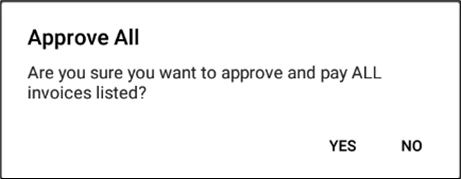
- Select Approve All to approve all invoices.
- Select Yes or No to the following confirmation message:
-
Approve All: Are you sure you want to approve and pay ALL invoices listed?
-
Approve All: Are you sure you want to approve and pay ALL invoices listed?
- Change the current association by selecting an association from the Association List.
- Select an invoice to open the Invoice Details.
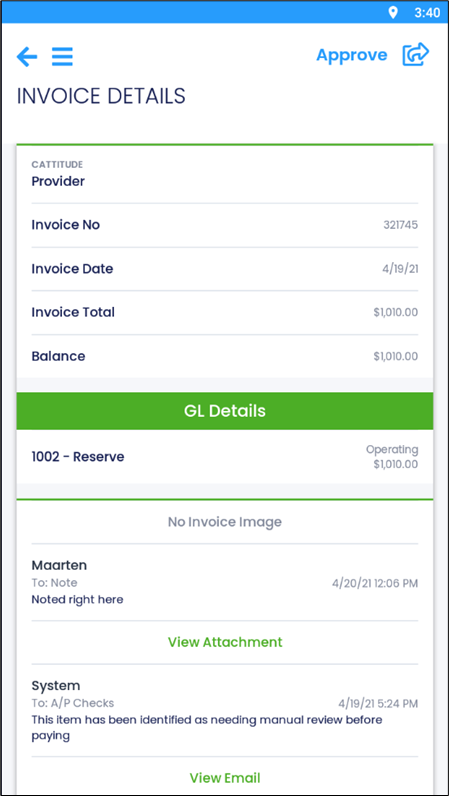
- Select the Forward Arrow Icon
 to access the following options:
- Change Step: Opens the Change Step page.
- Send Message: Opens the New Message page.
- Cancel
- Select Approve to approve the invoice signatures and step the invoice to the next step.
- Note: If the invoice has already been stepped, the Approve option will be replaced with Pay.
- Select the Forward Arrow Icon
- Select Yes or No to the following confirmation message:
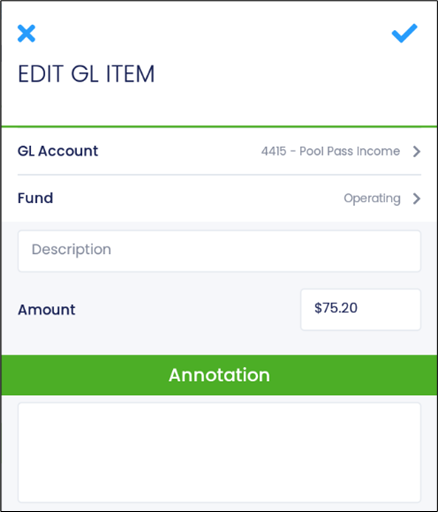
- Select the GL item to open the Edit GL page.
- Select a GL Account.
- Select an Association Fund.
- Enter a description if necessary.
- Enter the Amount.
- Enter an Annotation if necessary.
- Select the Checkmark Icon
 to save.
- Any attachments available can be viewed by selecting View Attachment where available.
Comments