System Activity Notes provides comprehensive tracking of all system and user activity in Vantaca. Key features include:
- Automatic tracking of Action Step modifications, Action Type changes, and system settings
- Manual note creation for custom documentation
- Advanced search and filtering to locate specific activities
- Enhanced Action Step tracking including creation, deletion, edits, rule modifications, and content changes
- Improved Action Type notes that display only changed fields with specific Action Type names
- Detailed change history for settings, templates, users, and reports
Important:
- System-generated Activity Notes cannot be edited. You can only edit Activity Notes that you manually create.
- For security purposes, one-time access codes and sensitive authentication information do not display in Activity Notes. This ensures that temporary access credentials remain secure while maintaining comprehensive activity tracking.
Contents
Access System Activity Notes
To access the System Activity Notes page, navigate to System > Activity Notes.
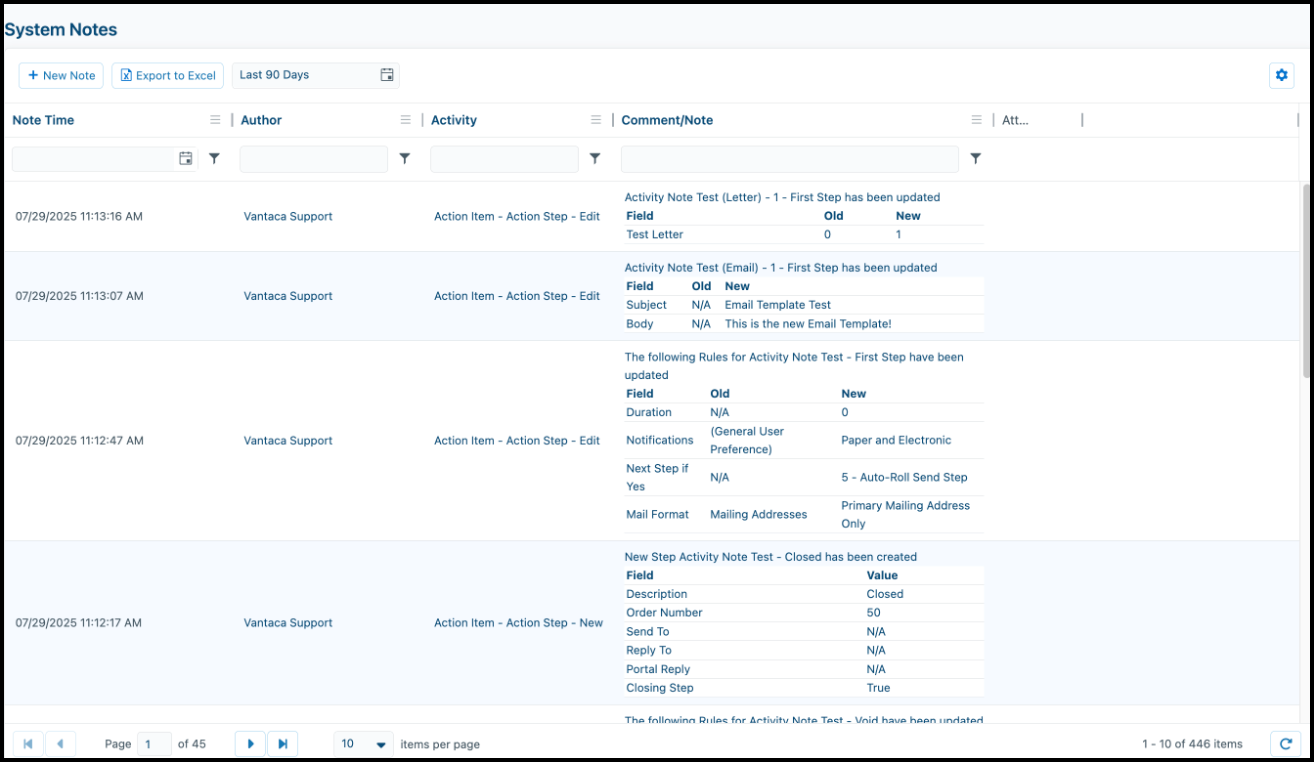
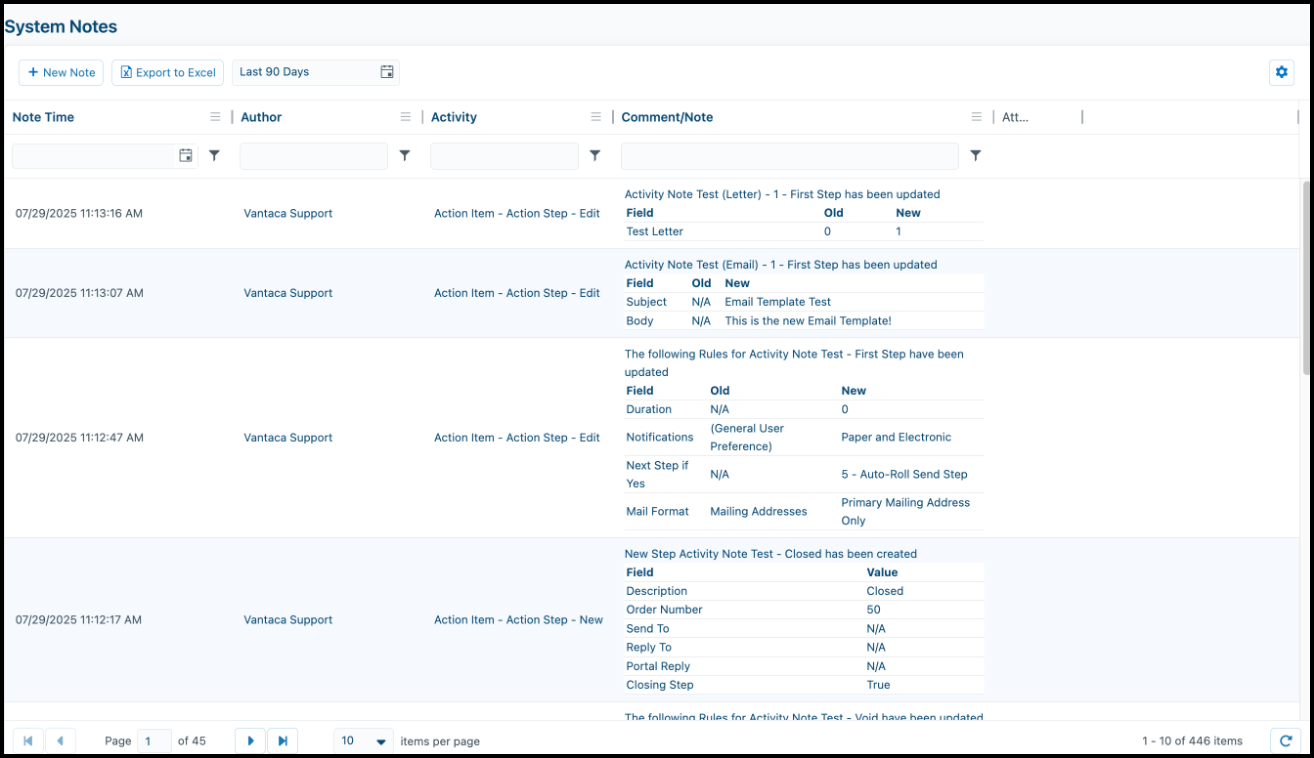
The System Notes page displays a chronological history of system and user activity in an easy-to-navigate table. The table defaults to sorting by Note Time with the most recent activity note first.
Search and Filter the Table
The System Notes page provides search and filter options to help you locate specific information.
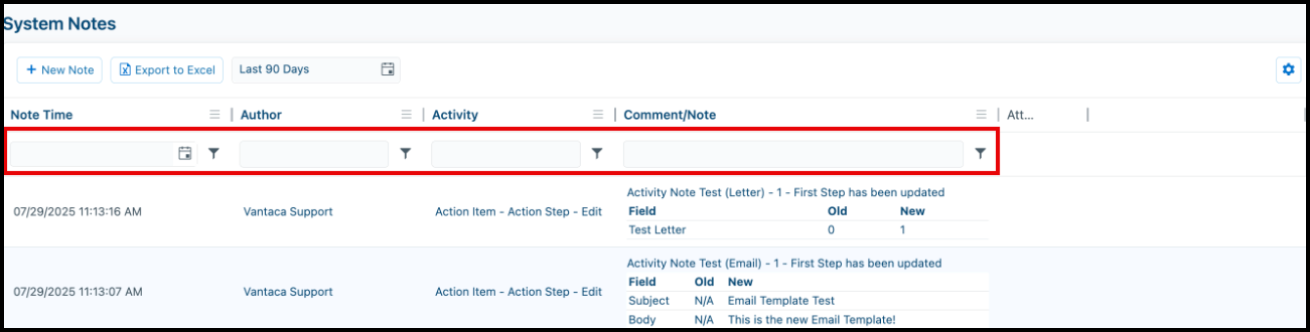
Search
Enter criteria in the search field to find notes by:
- Note Time
- Author
- Activity
- Keywords in the Comment/Note section
Filter
Click the Filter icon to filter Activity Notes by:
- Date range
- Notes after a specific date
- Specific author
- Excluding a specific author from results
Create System Notes
You can manually add Activity Notes to supplement the automatically generated notes.
To create a System Note:
-
Click New Note.
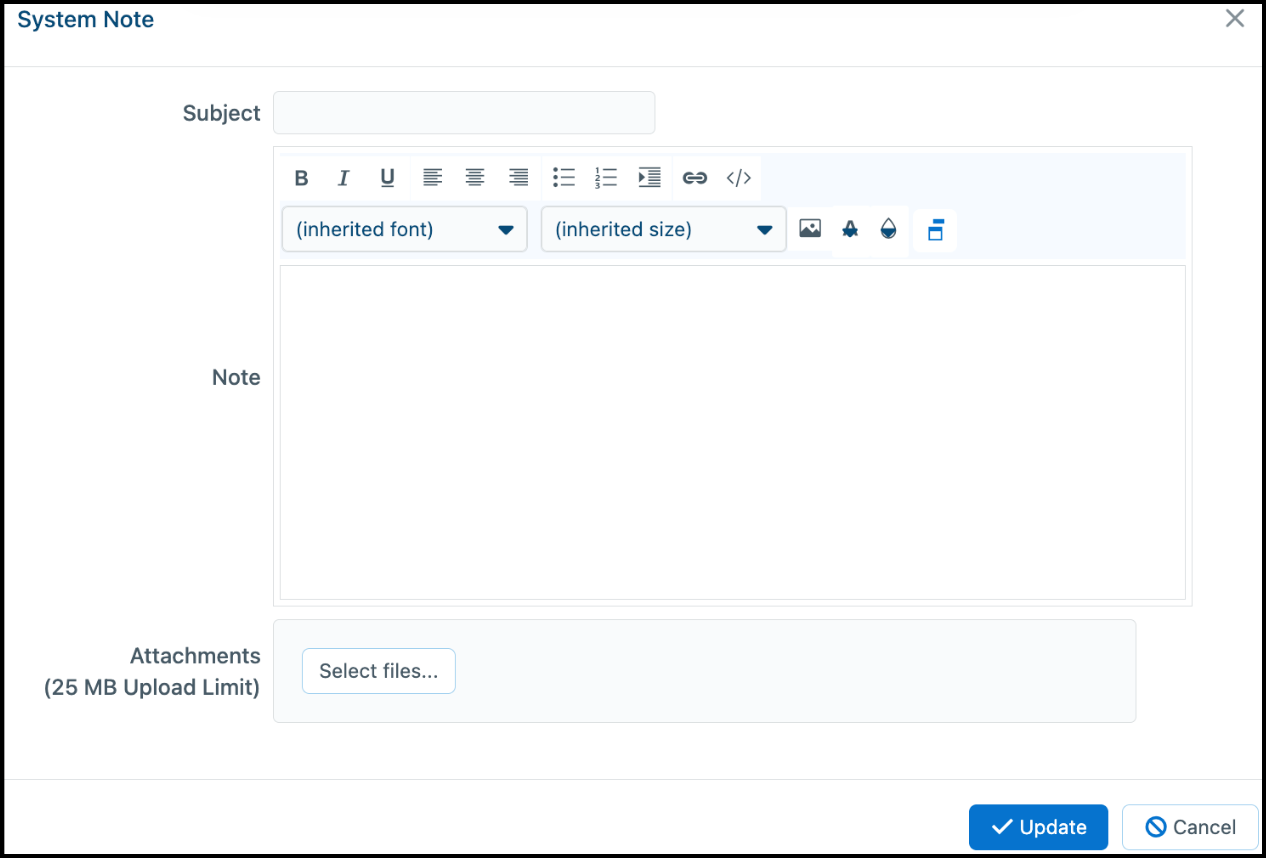
The System Note screen opens.
-
Enter information in the Subject and Note fields.
-
(Optional) Click Select files... to upload and attach files.
-
Click Update.
After creating an Activity Note, you can edit or delete it by clicking Edit or Delete. These buttons only display by notes that you have manually created yourself. Notes created by others or generated by the system cannot be edited.
System Areas Tracked
Changes to the following system areas are tracked automatically:
- Mailroom > Email Accounts
- Settings > Amenity Category
- Settings > Letter Templates
- Settings > Company Info
- Settings > Portal Pages
- Settings > Users
- Settings > Responsibilities
- System Settings > General
- System Settings > Conversion
- System Settings > Security (one-time codes and sensitive security information does not display)
- System Settings > AP
- System Settings > Check
- System Settings > Web Portal
- Reports
- Ledgers
- Service Providers
- Action Types (create, edit, delete, copy operations)
- Action Steps (comprehensive change tracking)
- Action Item Edits
Action Item Change Tracking
Vantaca tracks comprehensive changes to Action items, including:
-
Action Item - Action Step - New: Creation of new steps
-
Action Item - Action Step - Delete: Deletion of steps
-
Action Item - Action Step - Edit: Changes to order number, action step name, send to, reply to, portal reply, and closing step status. Step changes include the XN number at the beginning of the activity note.
- Action Item - Edit: Changes made to action items including action type, current step, association, homeowner, subject, description, dates, assigned to, attachments, and other action item fields. Notes show Field, Old, and New columns for all modified fields.
-
Action Item - Action Step - Rules: Rule modifications
-
Action Item - Action Step - [Content Type]: Changes to content from hamburger menu options:
- Instructions
- Letter
- Email
- Reports
- Documents
- Action Item - Internal Notes: Internal notes added by users (includes "Internal Note" prefix).
-
Action Item - Association Changes: When an action item is reassigned to a different association, activity notes are logged on both the old and new associations stating "This action item was reassigned to [Association Name]". For orphaned action items, the transfer note is logged to All Associations.
Enhanced Action Item Step Tracking
Action item step changes now include:
- XN numbers show at the front of activity notes in format "XN 12345: [step change details]".
- Step change history displays on the originating association where the action item was created.
- Transfer notes are logged on both old and new associations when action items are reassigned.
- For orphaned action items, step change history is visible across All Associations.
- Complete audit trail maintenance with proper association tracking
Different action categories (Collections, Violations, etc.) track field changes specific to their functionality.
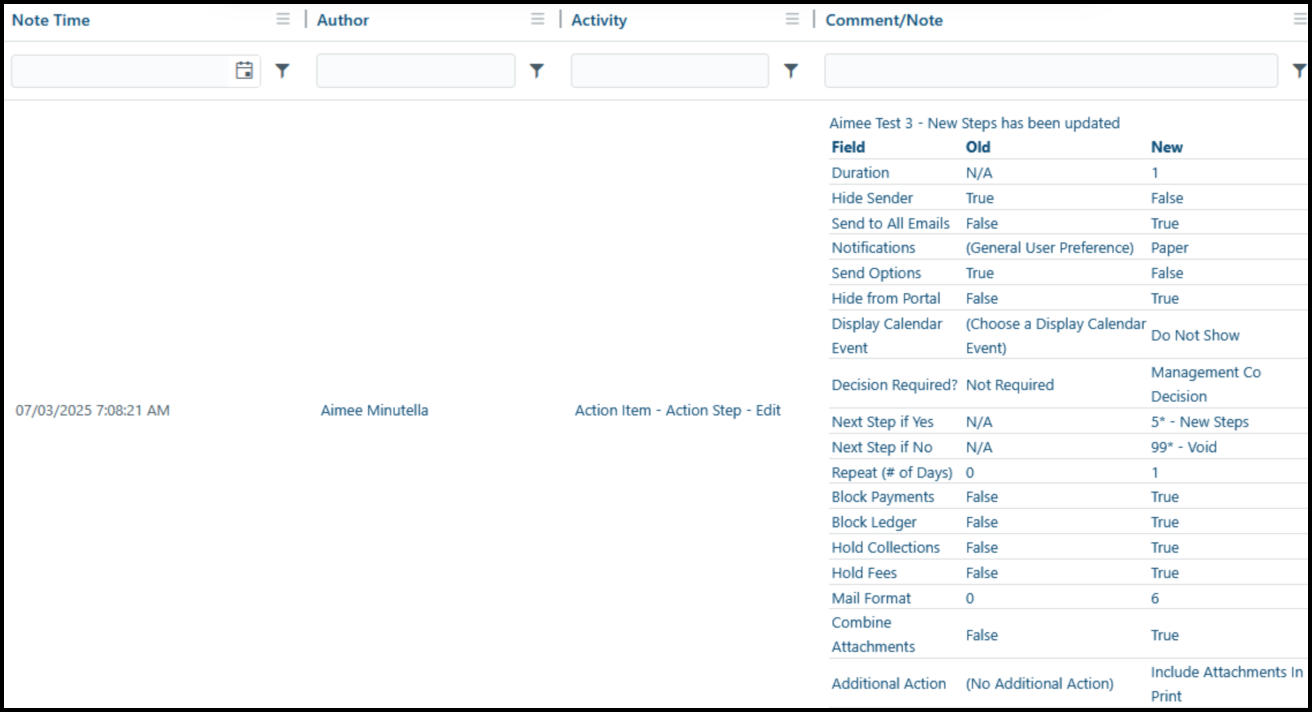
Each Activity Note includes the Action Type and Step name at the top for context. Changes to a single step are consolidated into one note entry. Changes to different steps create separate notes.
For body content changes, the system implements one of these approaches in order of preference:
- Shows specifically which merge tags were modified
- Shows full before/after comparison of the body
- Provides simple indication that "Body was changed"
Action Type Change Tracking
Activity Notes for Action Types include enhanced tracking with improved clarity.
Edit Operations
- Note heading shows "Action Type (Action Type Name) has been updated"
- Only displays fields that have changed (not all fields)
- Shows Field, Old, and New columns for changed items
Copy Operations
- Activity displays as "Action Item - Action Type - Copy"
- Note format: "Action Type [SOURCE_NAME] was copied to create new Action Type [DESTINATION_NAME]"
- Includes details about changed fields and copied items
New Operations
- Note heading shows "Action Type (Action Type Name) has been created"
- Displays all relevant field values
Delete Operations
- Standard deletion tracking

Comments
0 comments
Please sign in to leave a comment.