This article provides an overview of the use of letter templates in Vantaca. You can use the Letter Template page to copy Merge Tags and upload templates created in other text editors.
Vantaca Template Manager
You can create a Letter Template to upload using a text editor, for example, Google Docs:
- Navigate to Settings > Letter Templates.
- Click Merge Tags.
The Merge Tag Search screen opens.
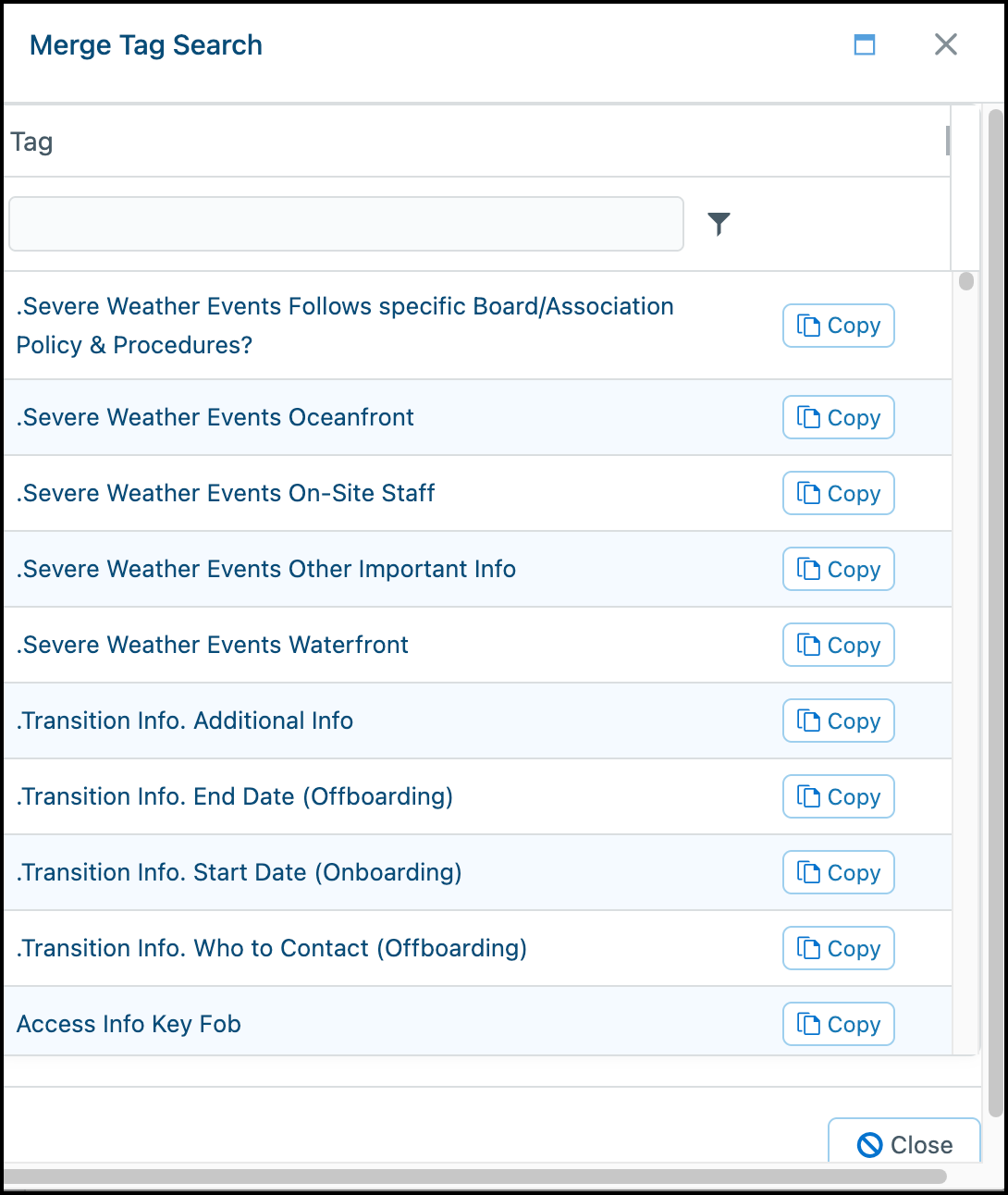
- Search for the tag you want to include in your letter template, and then click Copy. For information on available merge tags, please review our Merge Tags article.
- Add the tag to your letter template file in your text editor. You can add as many tags as you like until the template is set up as you want.
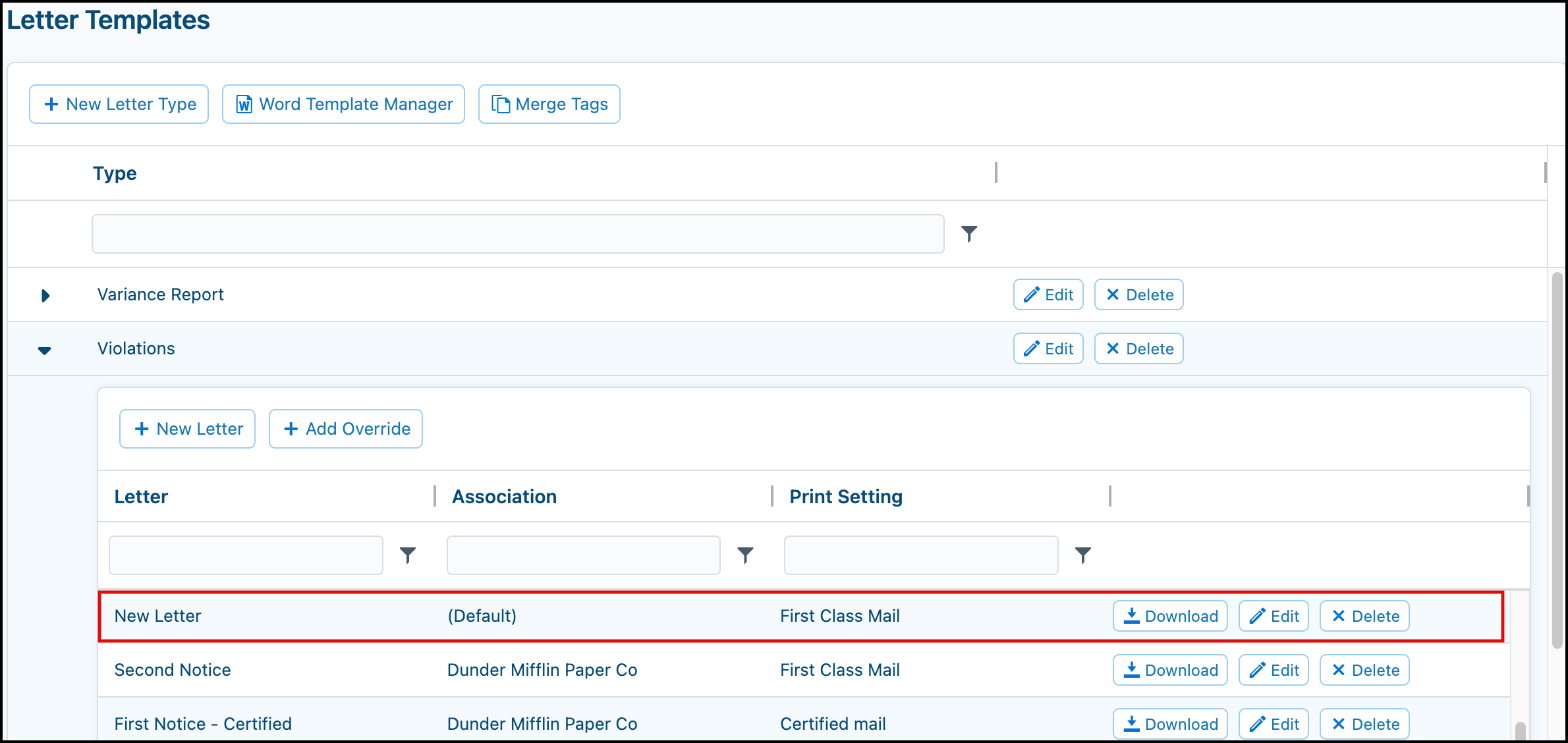
- When your letter template file is ready, click the caret next to the Letter Type that you want to add to.
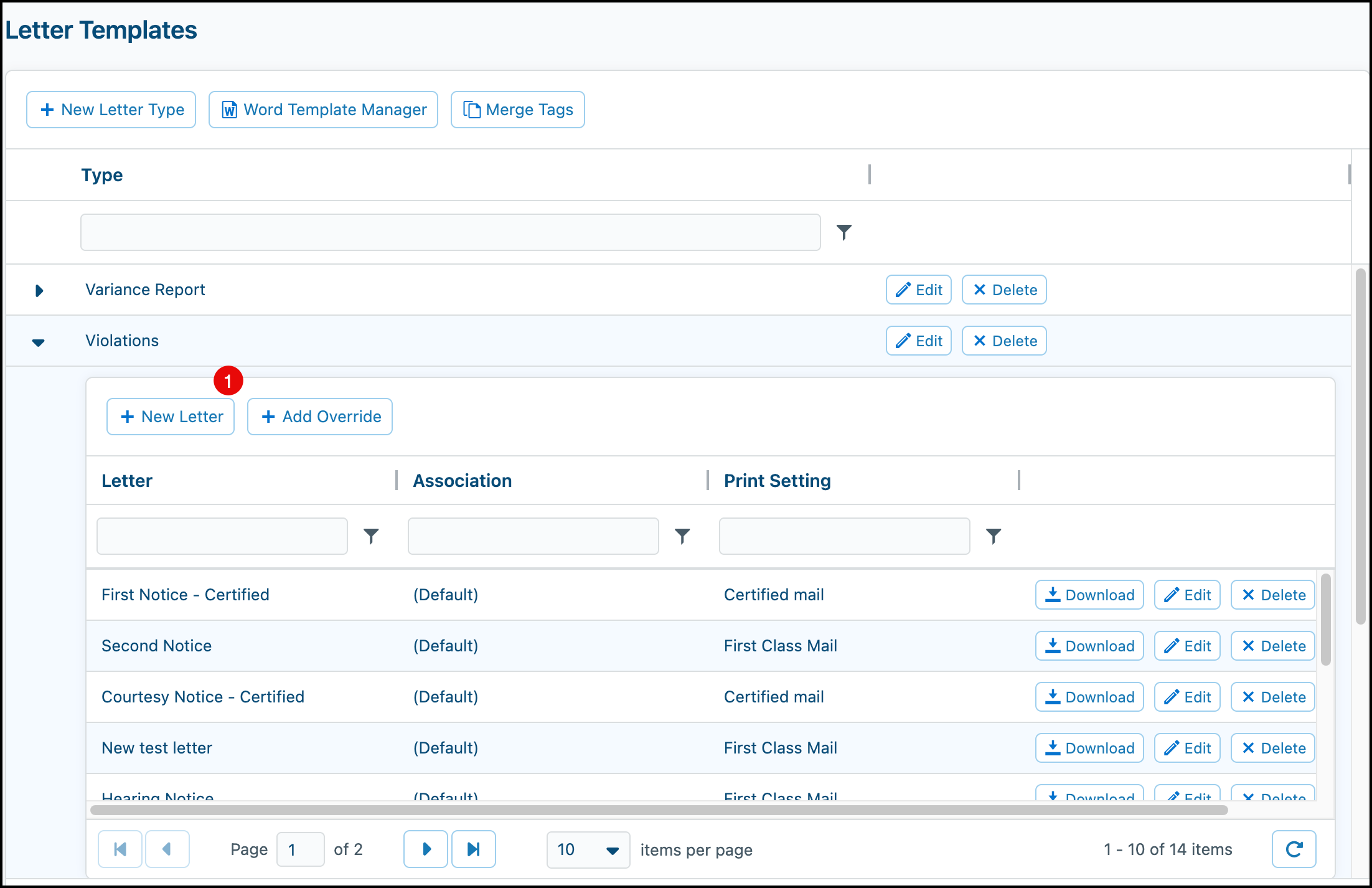
The section opens to displays the current letters for that type.
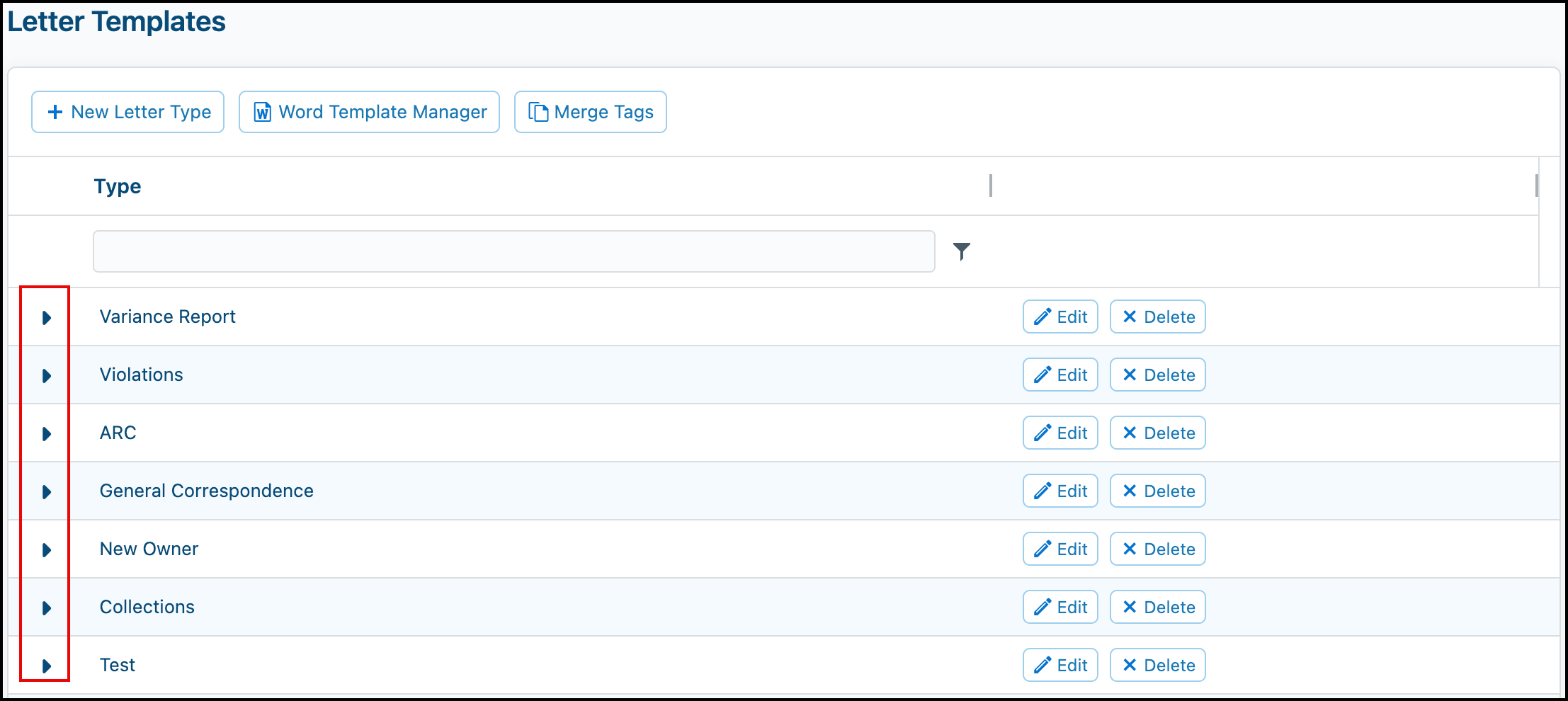
- Click New Letter (1).
-
In the Letter Template screen, provide the following information:
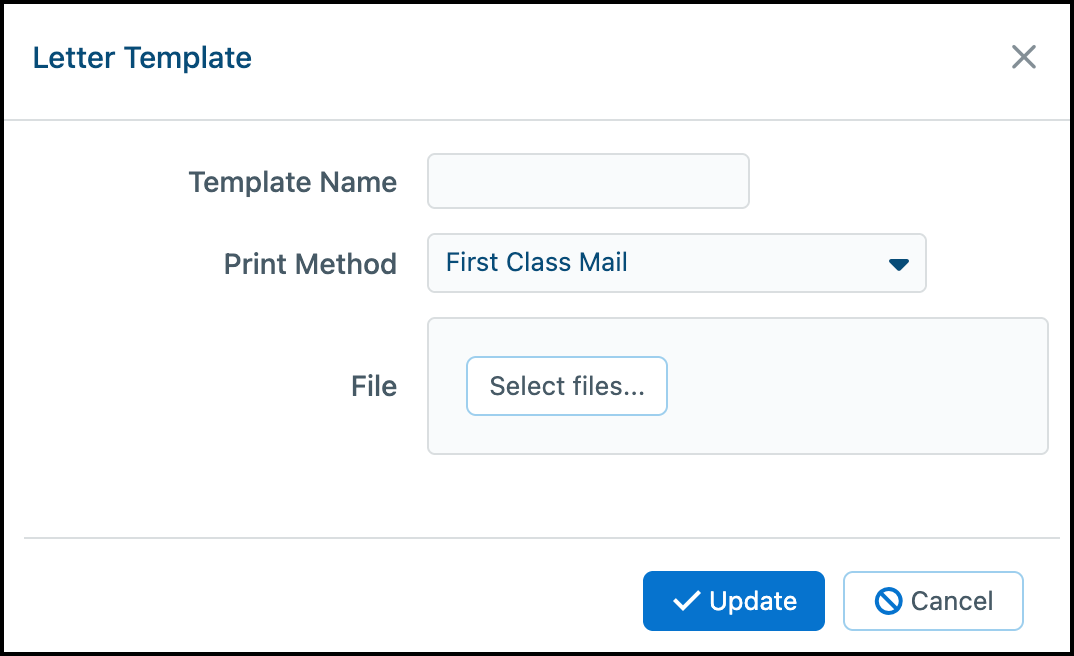
- Template Name: Enter a name for your new letter template.
- Print Method: Select First Class Mail or Certified mail.
-
File: Click Select files, and then upload your template file.
Important: If you upload a new letter template to a letter with a template already applied, it will overwrite the existing template and any subsequent generated action items will be created using the updated letter template. Ensure you keep a copy of the template you're overwriting as it cannot be recovered.
-
Click Update.
The new letter will show in the grid where you can click Download, Edit, or Delete as needed.
FAQ
Q: How do I add the new letter template that I just created to an action item?
A: The letter template must be added to the action type step, not just created in Settings > Letter Templates.
To add the letter template to a step on an action type:
- Navigate to Settings > Action Types/Steps
- Locate the action type in question
- Once located, go to the desired step and click Rules > Letter Template
- Find your letter template
- In the Order No column:
- Enter 1 if this is the only letter on this step
- Enter the appropriate number (1, 2, 3, etc.) if multiple letters are included, based on the order you want them to print
- Click Save changes
Q: How do I add a letter template for a specific association?
A: To add an association-specific letter override:
- Go to Settings > Letter Templates
- Locate the Type the letter template resides under and click the caret (▶) to the left of the Type to expand it
- Click the Add Override button
- On the Letter Template window, select the letter template you are adding an override for via the Template Name field
- Select the Association the override applies to
- Select the Print Method — either First Class Mail or Certified Mail
- Upload the association-specific letter via the File field by clicking Select files... and locating the template on your computer
No changes to your action types are needed. When an action item is created, Vantaca will automatically check if an override letter exists for that association and use it in place of the default letter if one is found.
Word Template Manager
Important: The use of the Word Template Manager with Vantaca will be deprecated soon. We recommend that you use our built in template manager (described above).
To download our word template add-in from Vantaca.net, navigate to Settings > Letter Templates and select Word Template Manager. Your browser will prompt you to run and install a quick download. This only needs to be downloaded once per computer.
Note: If you do not have access to this button, check your Role securities. Users must have a role that includes both Mailroom > Communication Setup > Update and Mailroom > Letter Templates > Add/Update.
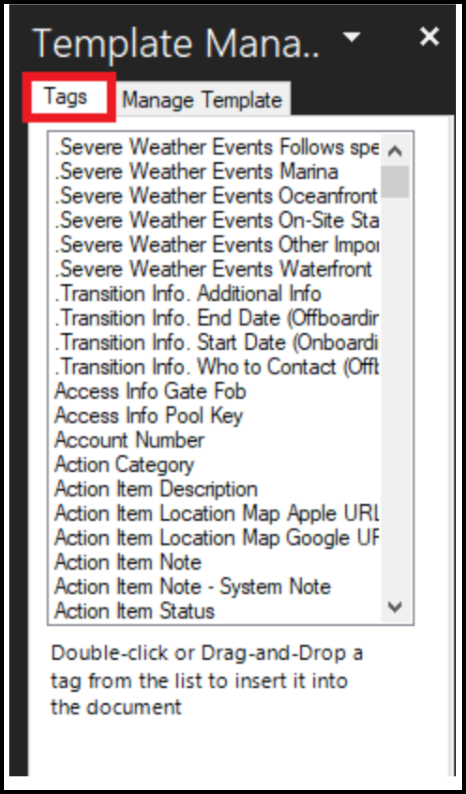
Once the Template Manager is downloaded and installed it is best practice to reboot your computer and open a NEW instance of MS Word. Go to the Add-Ins tab and click Show Template Manager. The template manager will open on the right-hand side of your screen. You will also see a Choose Company dialogue box. Enter your Vantaca Company ID and click OK.

The template manager has an extensive list of Merge Tags. To add a tag, double-click on the tag on the right side to insert it into your word document. The tag will insert at your current cursor location. When generating a letter, these Tags will pull information from the system into the letter. Tags will follow general formatting, meaning you can Bold, Underline, or Italicize; resize, or change the font in the letter template, and these changes will follow into the generated letter.
Once you are satisfied with your letter, it's time to upload it into Vantaca. Note: If this is a NEW letter, you must save it to your desktop prior to uploading.
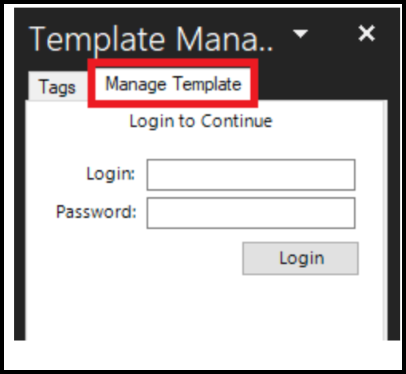
To upload your letter template, click on the Manage Template tab on your Template Manager. Login using the same login credentials you use for the Vantaca.net site.
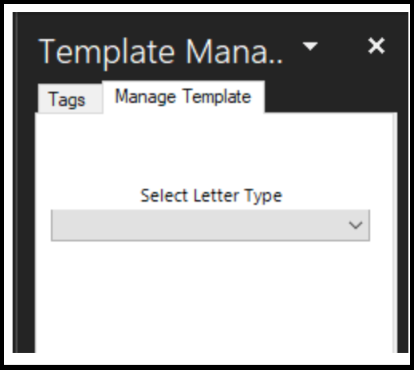
Select your Letter Type. This list will follow the categories found on Settings > Letter Templates. For Example: Violations, General Correspondence, or New Owner are listed by default.
Once your Letter Type is selected, you'll have the option to Select Letter. This list will display all currently uploaded letters in the chosen Letter Type. Select a New Letter to upload a brand new letter. Name the letter how it should be displayed in the Vantaca System.
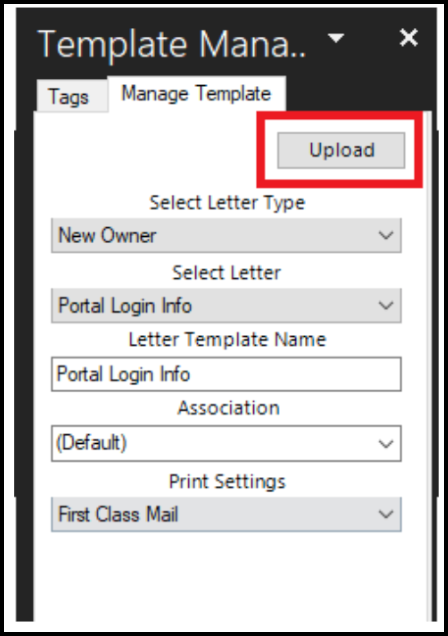
Choosing an existing letter will display the information for that letter. Changing the name here will change the name of the letter globally, and override what is there now.
If this is an existing letter, you can override the Default (Global) letter, or create an Association-Override Letter Template to display unique letters for specific Associations using the same Action Item Configuration. For Example: One Association requires their letterhead or logo on their violation letters.
Lastly, choose First Class Mail or Certified Mail to alert internal staff how this letter should be sent (or when sent 3rd party mailing services such as South Data or Optimal, this letter will send by the method selected).
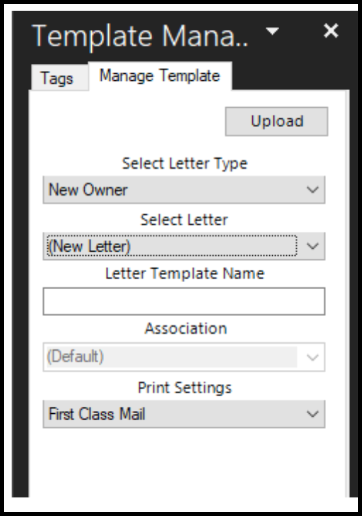
Select Upload and your letter will be uploaded into Vantaca. You will receive an "Upload Successful" message when it is complete. You can now add these letter templates to Action items and begin communicating through Vantaca!

Comments
0 comments
Please sign in to leave a comment.